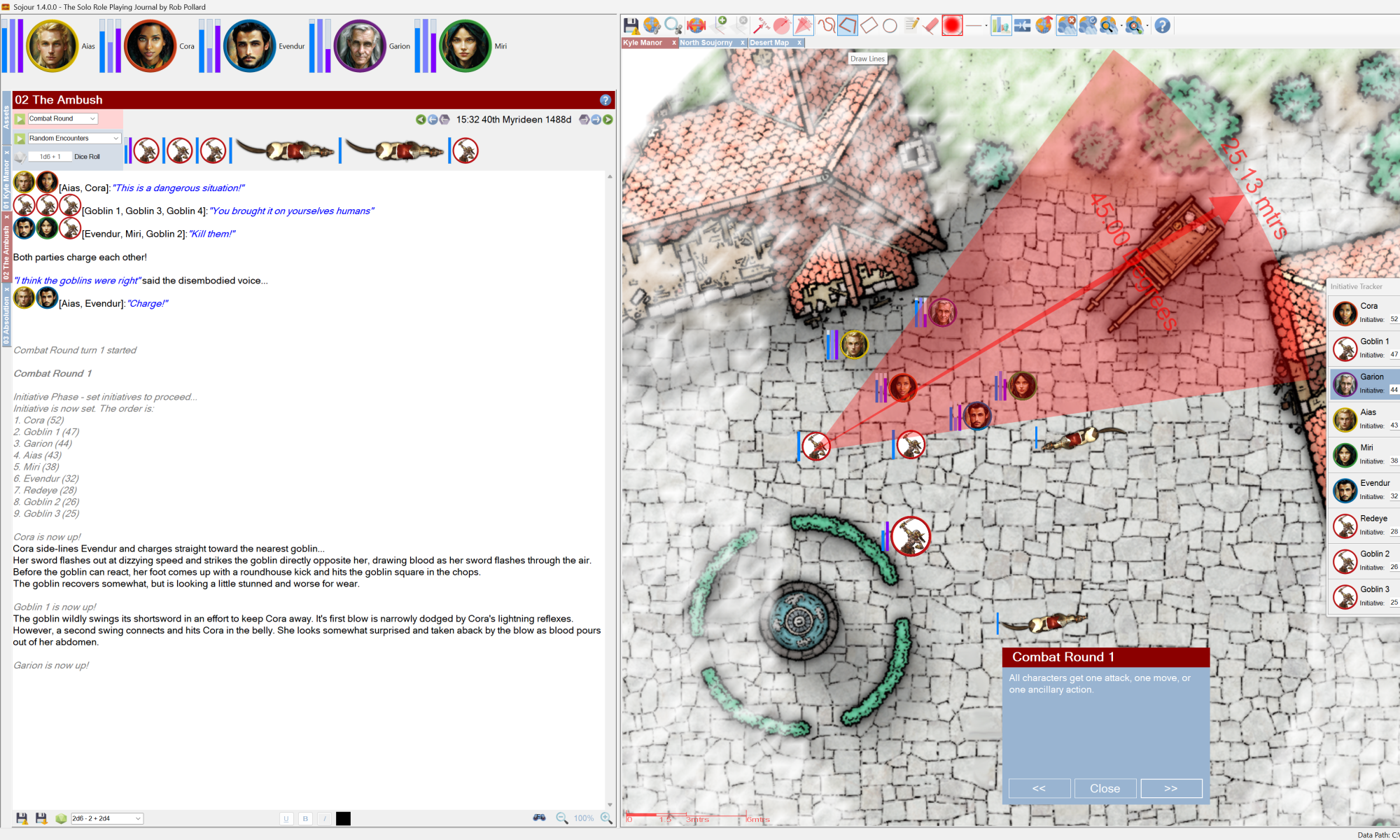

This version contains a number of fixes and enhancements.
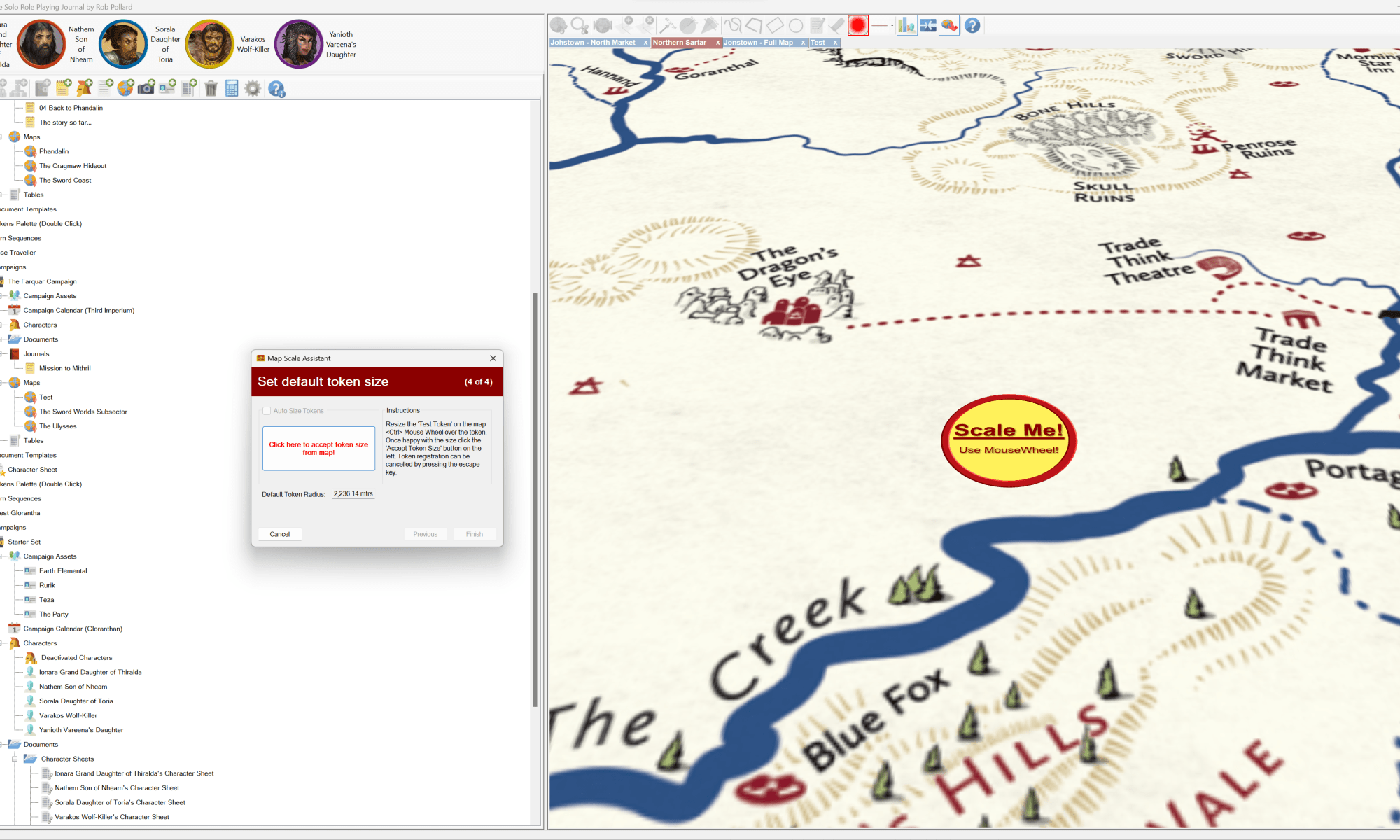
The biggest enhancement has been the provision of custom token sizes on a per map basis (as opposed to relying on Sojour’s in built auto-sizing mechanism).
To achieve this the Map Scale Assistant has had considerable under-the-hood changes made to it. These changes should make it easier to use. Any alterations are now seen in real-time on the map, the cancel button will now undo all alterations, and each registration pane will now automatically update its defaults with information from the current map.
In addition, all the drag and drop code for map tokens has been significantly reworked to make the dragged tokens better represent their originating tokens. For example orientation and custom scaling are now taken into account!
Here is the full list of fixes and enhancements:
RPG-300 Occasional crash when using the drawing tools.
RPG-301 Give users the ability to pick a default token size for a map.
RPG-302 The tilt registration button (and others) need to be disabled during registration.
RPG-303 Maps were initialising an unnecessary vertex buffer – this should increase the max map size that can be imported! (This was a hold-over from Ancient Armies)
RPG-304 Resized tokens drag image is not the same size.
RPG-305 Alt GR and other modifier keys are being mis-read by Sojour due to Windows mis-reporting them. I got this fixed by replacing the Windows code with Direct-X. This should help non-English customers to be able to access their Nation’s custom characters without triggering many of Sojour’s auto-formatting features.
RPG-306 Rotated drag cursors don’t match token orientation
Another minor enhancement has been to the iconography for some of the mapping toolbar buttons – can you spot the differences? 🙂
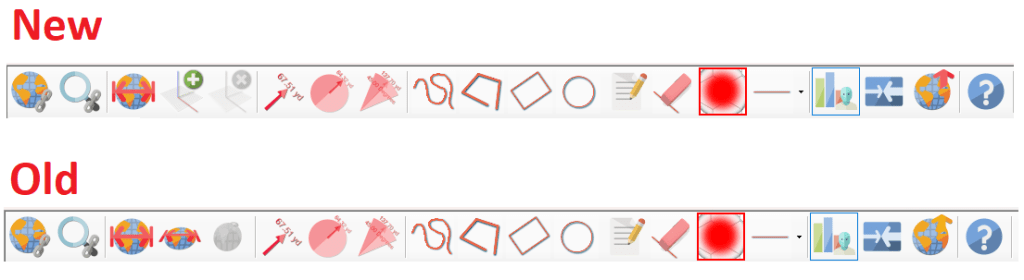
Hopefully, you’ll agree that the new buttons look better!
Alas, I have had to make a slight change to one of the map’s mouse wheel commands. Something I don’t like to do as users get to learn the shortcuts and automatically apply them. Changes such as this can trip them up.
In the past you used <ctrl> mouse-wheel over a token to resize it, and the mouse-wheel over a token to change its heading. These two have now been swapped around. So, mouse-wheel to resize and <ctrl> mouse-wheel to rotate.
This change was necessary to make the token size adjustments in the Map Scale Assistant flow more smoothly and I’d rather that the assistant and the map used the same shortcuts, hence the change.
I won’t go through the changes of the Map Scale Assistant as they are extensive. Instead, I have provided a video that has been uploaded to You-Tube that covers off the new functionality :
I hope you all like the enhancements and fixes
Have Fun!
RobP
 Sojour