

Before I discuss this update, I’d firstly like to thank each and every one of you that have bought Sojour! We have now reached the 500 sales mark and have earned the coveted Gold Best Seller Tag:

With that excitement out of the way here is the custom folders update.
Custom folders has reached a milestone – All of the functionality is now coded!
The tasks that I have left are to update the manual and to conduct extensive testing and fix any issues that are found.
During the final coding phase of custom folders I had to change the way that the deactivated character feature worked. Though now that it is done, I think it’s a change for the better!
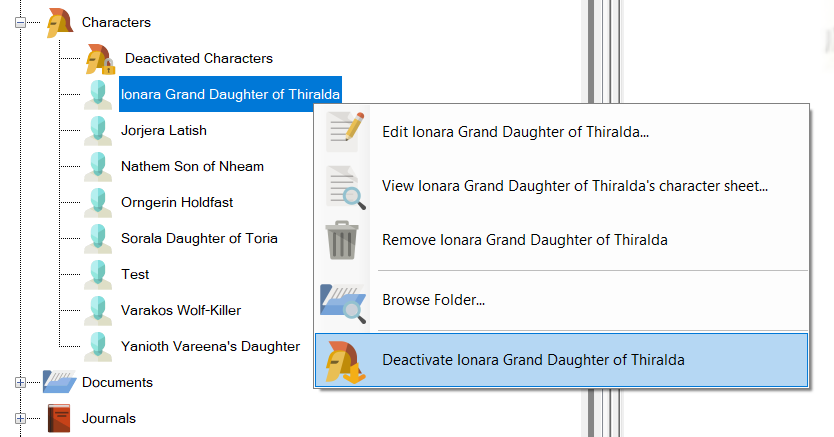
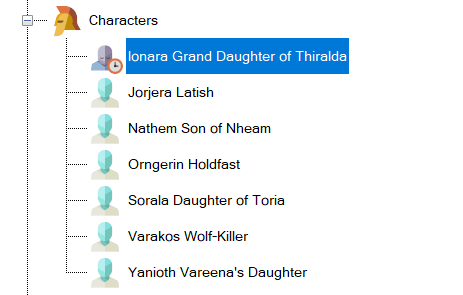
In the past, when you deactivated a character, it would be moved to a special Deactivated Characters folder within the Assets Browser:
Before Deactivation (current system):
After Deactivation (current system):
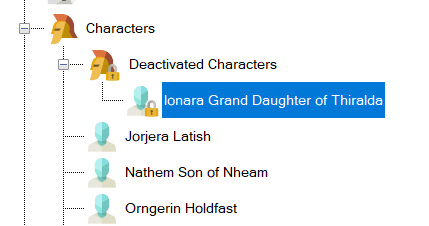
This has now changed. The Deactivated Characters folder is no more!
In the new system, when you deactivate a character, rather than moving folder, its iconography will change instead:
Before Deactivation (new system):
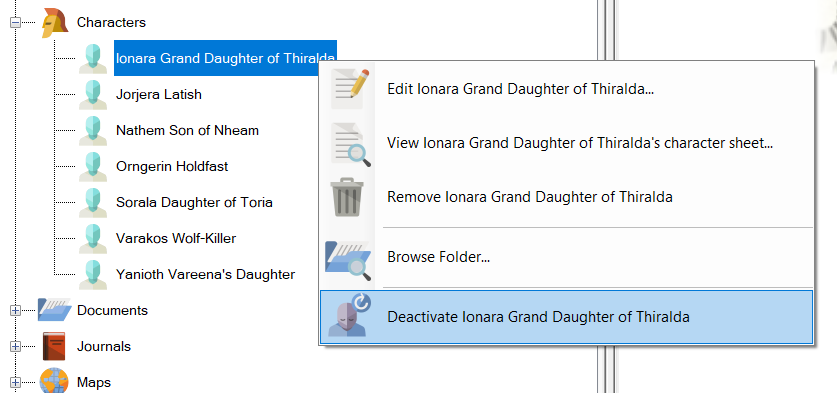
After Deactivation (new system):
But wait, that’s not all that’s changed!
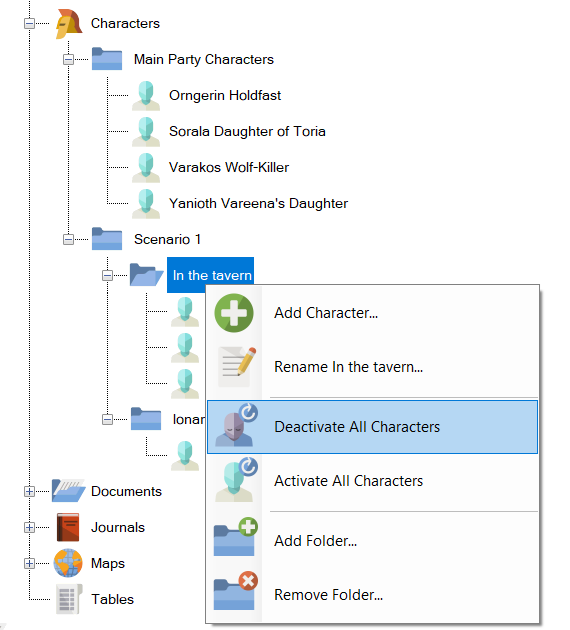
Given that we now have the ability to create folders within the characters folder, I decide to add the option to be able to activate and deactivate all characters within a folder and its sub-folders with a single mouse click!
For example, here I have created a number of folders to represent my core characters and various places within a scenario:
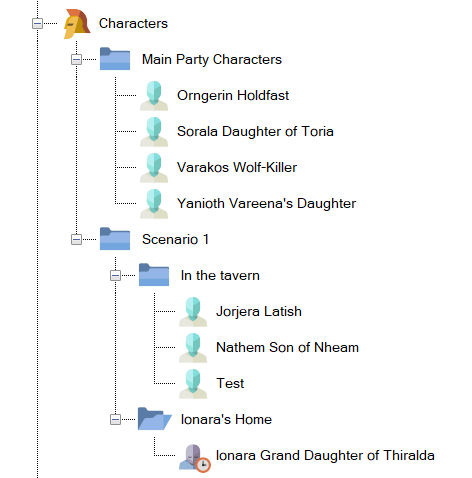
Our party is currently in the tavern. All the characters associated with the tavern are activated, whilst, conversely, the character in Ionara’s home is deactivated.
When the party eventually moves to Ionara’s home, we could activate Ionara by activating all characters under Ionara’s home, then we could deactivate all characters under the ‘In the Tavern’ folder using just one mouse click:
The end result of deactivating everyone under ‘In the tavern’:
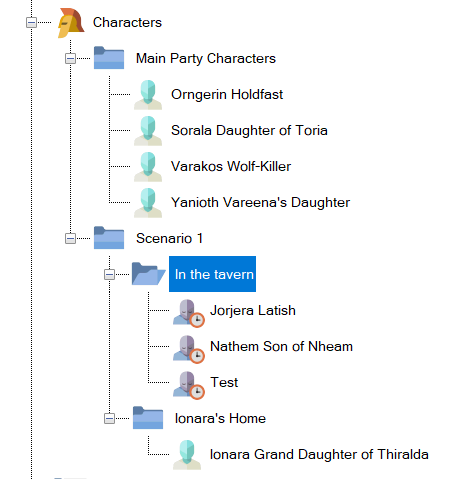
In addition, if one wanted to, one could activate or deactivate all characters under the Scenario 1 folder (and sub-folders) or alternatively all characters in the entire campaign by selecting the correct folder level.
Plus, one still has the option to individually activate or deactivate characters.
This new functionality should make it much easier to organize and manage your characters in large campaigns.
That’s it for this update. I hope you all like what you see!
Have Fun!
RobP
 Sojour