This version has Sojour’s first iteration of Fog of War for maps.
(I have taken the video down from this post. The Fog of War video has been replaced with a new one on the v.1.2.4.0 post!)
Have Fun!
RobP
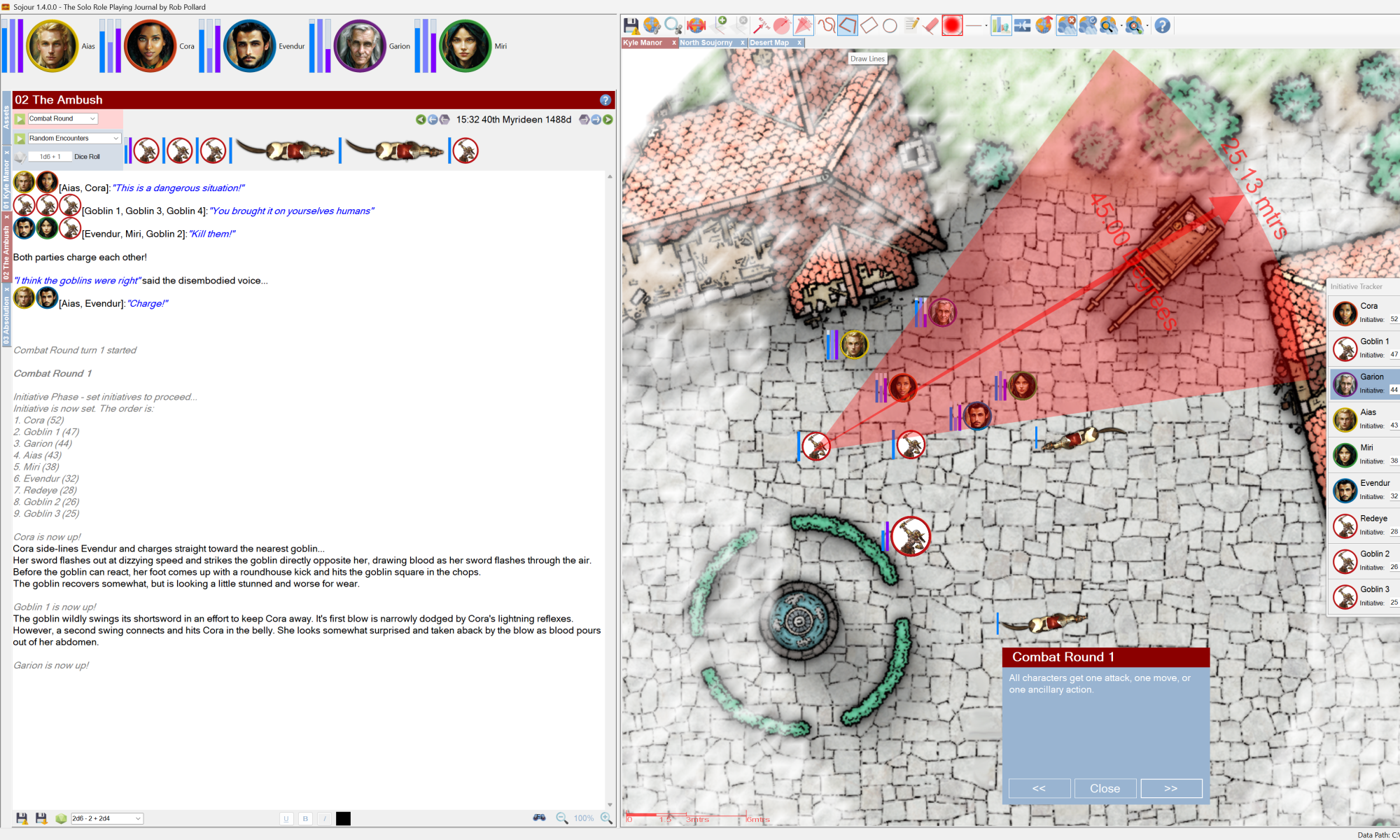

Sojour is the premier solo virtual table top (VTT)
This version has Sojour’s first iteration of Fog of War for maps.
(I have taken the video down from this post. The Fog of War video has been replaced with a new one on the v.1.2.4.0 post!)
Have Fun!
RobP
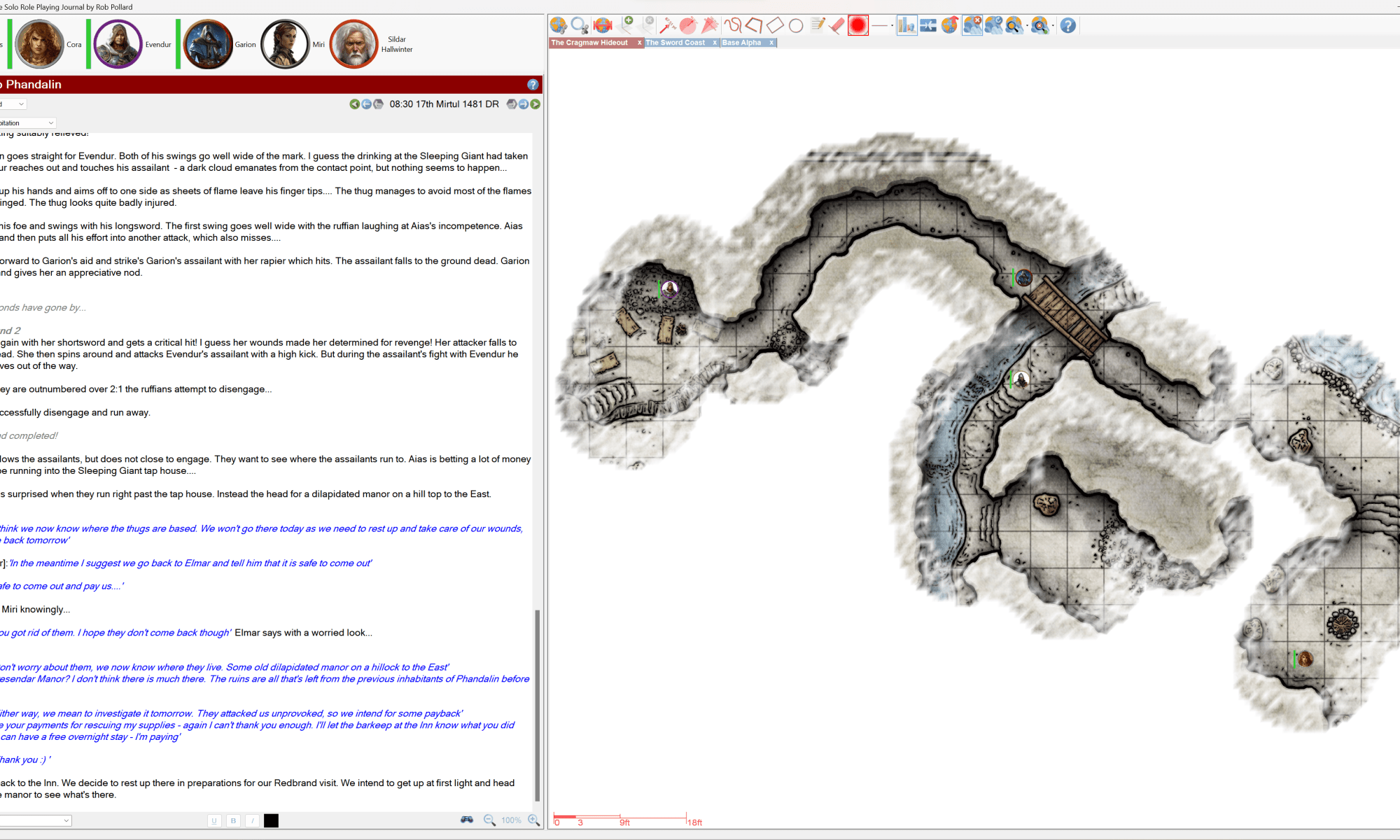
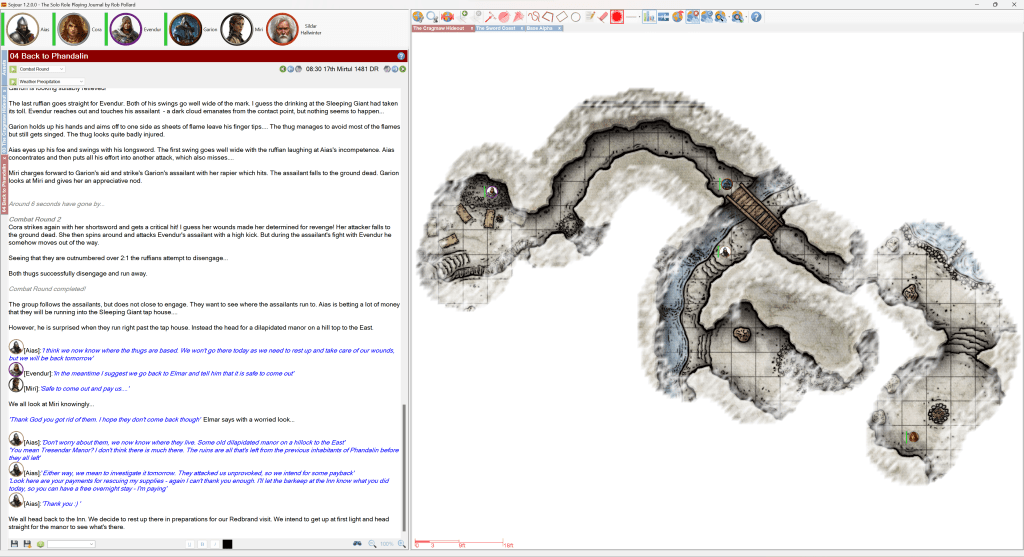
The coding is done, as is most of the testing. The only things left to do are updating the manual and creating a new tutorial video that will take you all through the new Fog of War system.
Not long to go!
Have Fun!
RobP
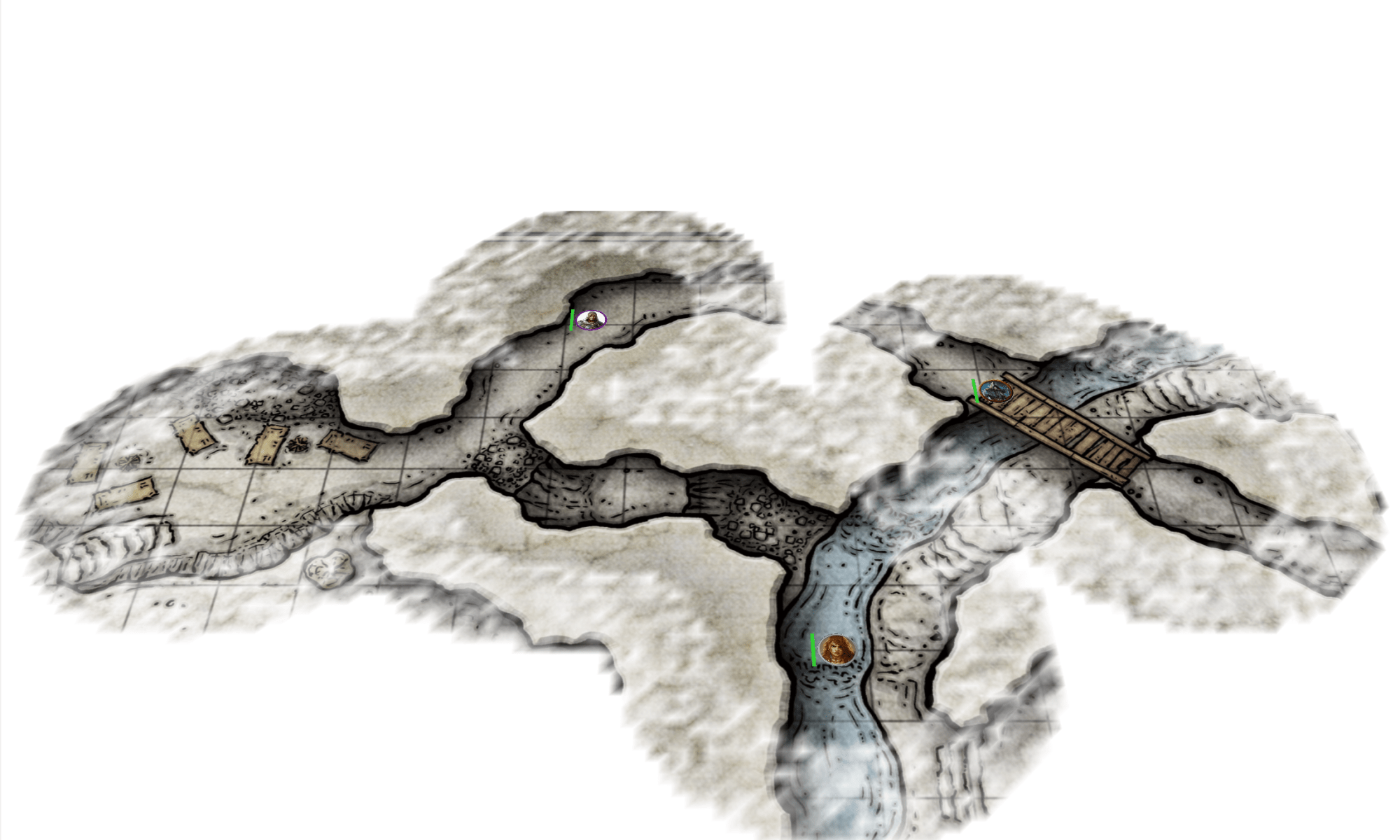

Here is a video showing it working on a map with max fog density:
And here is a video with the fog set to minimum density. This video shows off the fog animations (you will need to look carefully as they are subtle):
Remember, it’s still early days, and “Mum’s” the word!
RobP
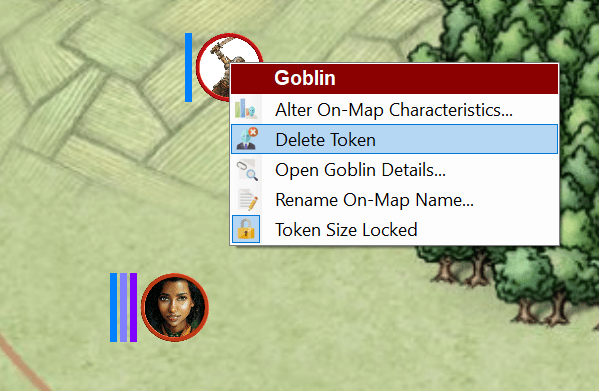
This release contains quite a few enhancements that are mostly centred around the map context menus. These menus now tell you what they are focused on and their options are now filtered based on what you right clicked on.
Here we are right clicking directly on a map:
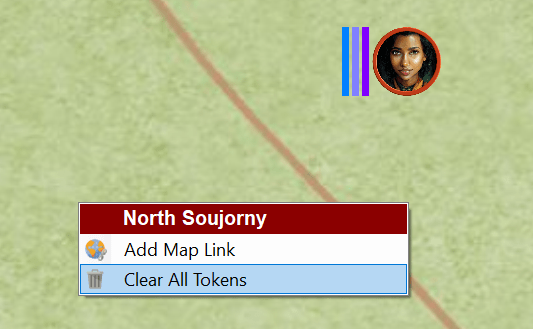
The top of the menu now shows the name of the focused item. In this case the North Soujorny map.
There is also a new option here too 🙂 You can now clear all tokens on a map with just one click! Note this will not clear static campaign assets as those are considered to be part of the map. They have to be manually deleted.
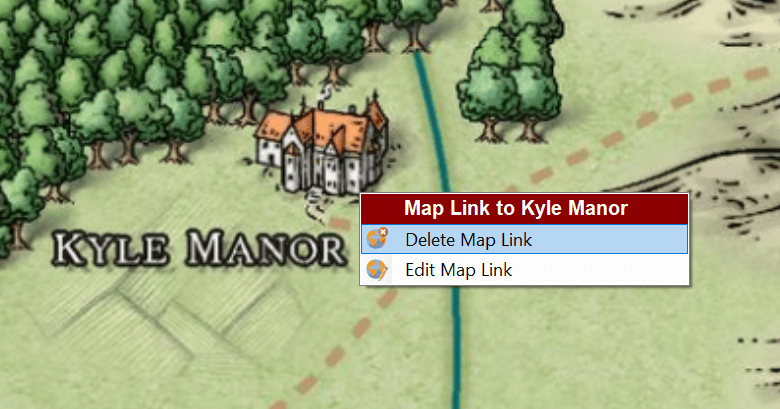
The image below shows what the context menu looks like on a map link:
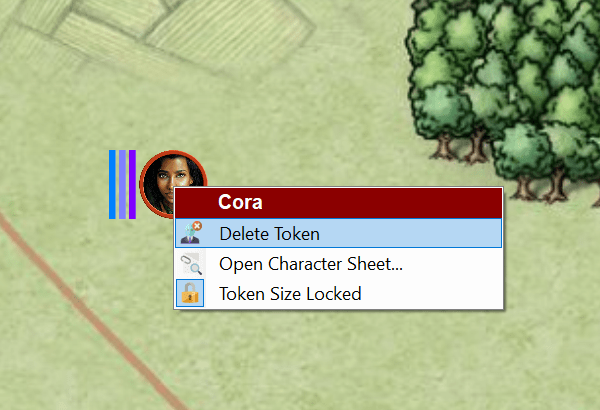
A character:
A campaign asset:
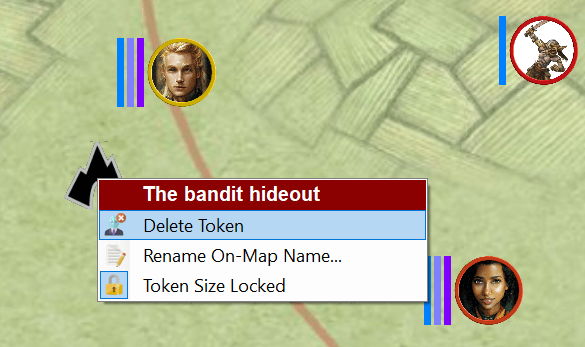
And finally a token:
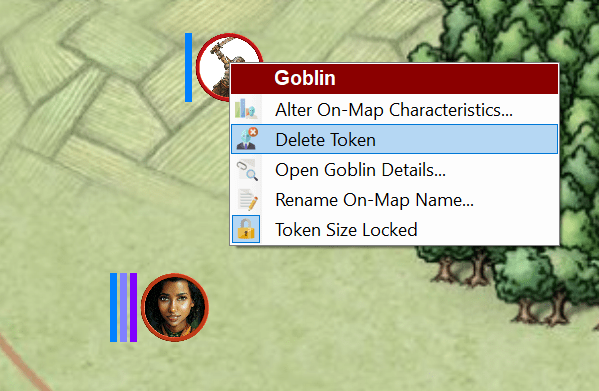
The eagle eyed amongst you will notice a new menu item for tokens called ‘Alter On-Map Characteristics’. Clicking this results in this new dialog window appearing:
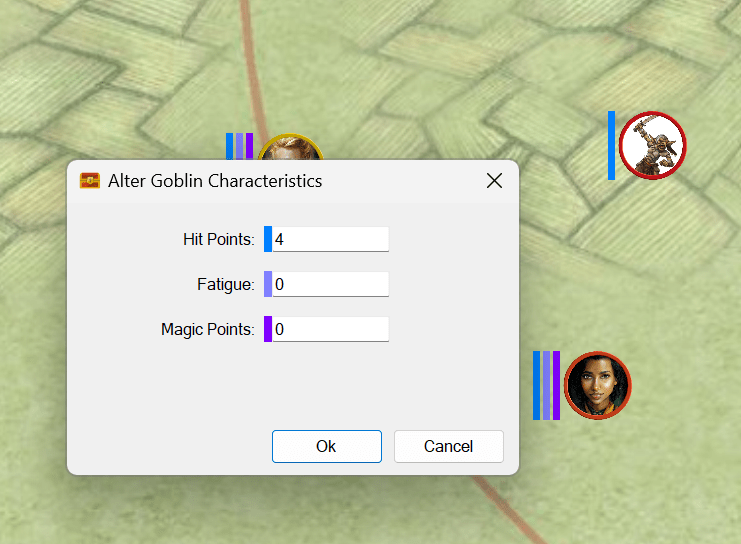
From here the user can update the token with a very specific set of characteristic values. This is handy for those occasions where a scenario specifies an encounter with standard creatures that have very specific characteristics.
A lot of fixes and enhancements went into this release. This is the full list:
That’s it for this release!
Have Fun!
RobP
This is a hotfix that fixes an issue identified by a customer in the campaign calendars. It also fixes an issue that I noticed this morning whilst using it.
I have a zero tolerance policy to bugs – so if you find any, please report them and I’ll do my best to get fixes out as soon as possible.
You will need to pop into your DriveThruRPG accounts to download this update.
Have Fun!
RobP
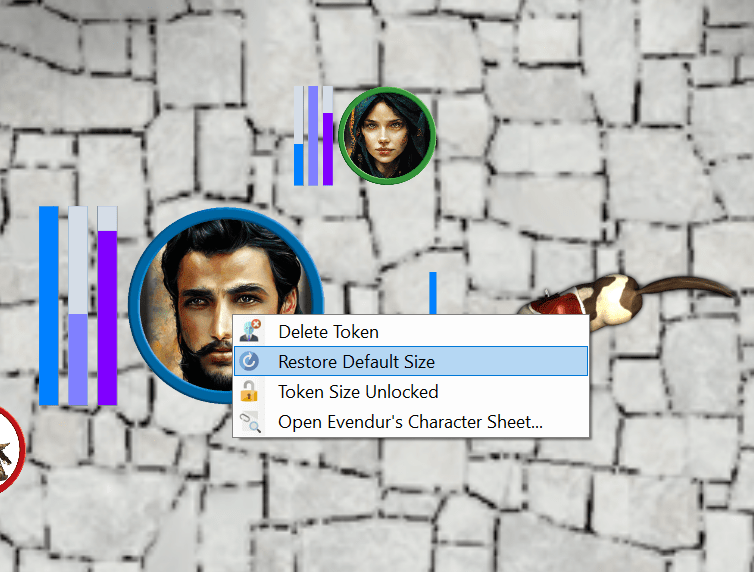
This release fixes a number of issues and also adds token size locking to prevent accidental token resizing.
With this version you must unlock a token before you can resize it with the mouse wheel.
Tokens are unlocked by right clicking on them and toggling the ‘Token size locked :
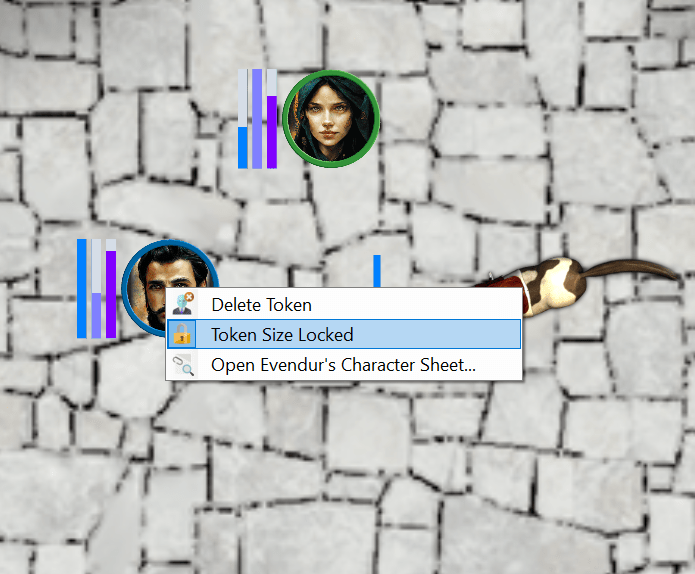
Sojour remembers this setting for each token on each map.
Tokens that have their default sizes changed by the user can now be reset back to the map’s default token size by right clicking on them and selecting ‘Restore Default Size’:
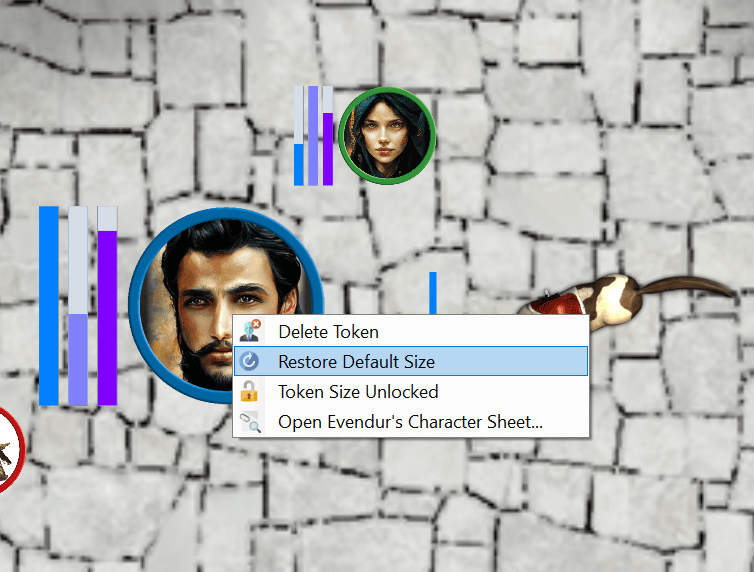
These two enhancements should make token size management a little less fiddly 🙂
Here is the full list of changes and fixes in this release:
As usual all updates are free for paying customers! Just pop to your DriveThruRPG accounts and download the latest version!
That’s it for this post!
Have Fun!
RobP
Have Fun!
RobP

I have to say that I’m very pleased with Microsoft’s swift conclusion to this issue.
They have determined that Sojour is not a virus and will be removing it from their definitions.
Here is a screenshot of the feedback:
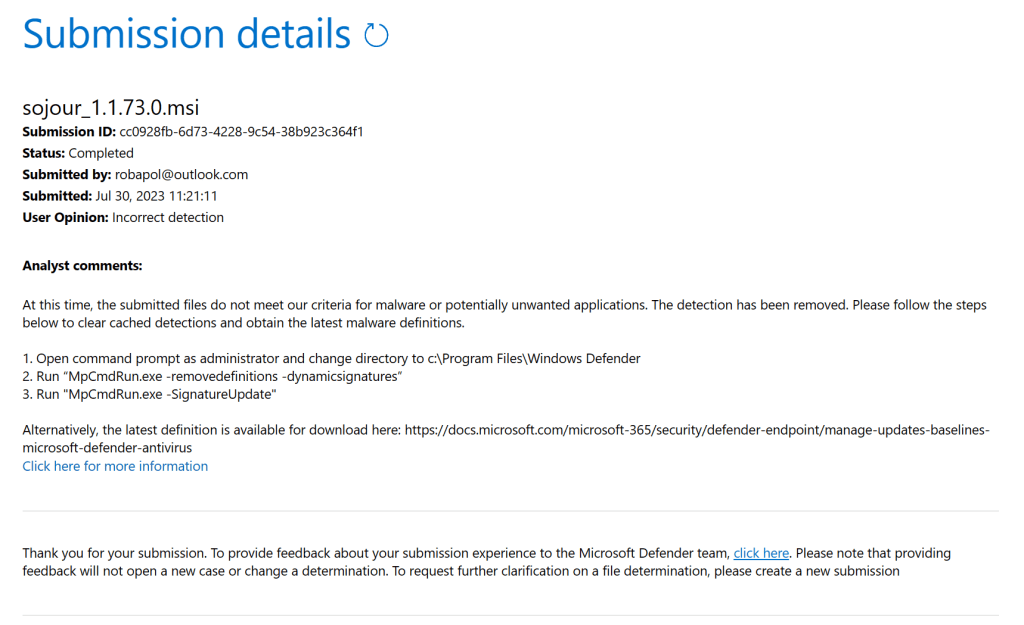
I guess that once your Window’s Defender apps get the latest definitions, Sojour will be back to being treated as a normal application 🙂
Have Fun
RobP
I have just had a report that Sojour’s installers, including its earlier versions are now being flagged as a virus by Windows Defender. Anyone having installed the earlier versions will know there is nothing untoward.
However, I have now managed to replicate this myself:

This is as a result of a false positive from, I suspect, the obfuscator that I’m using to obfuscate the code.
Sojour is safe, it’s just standard .net code – in fact, Sojour doesn’t even have any DRM, so I’m unsure why its suddenly getting flagged.
I have submitted Sojour’s latest installer to Microsoft for evaluation to get them to white list it again:
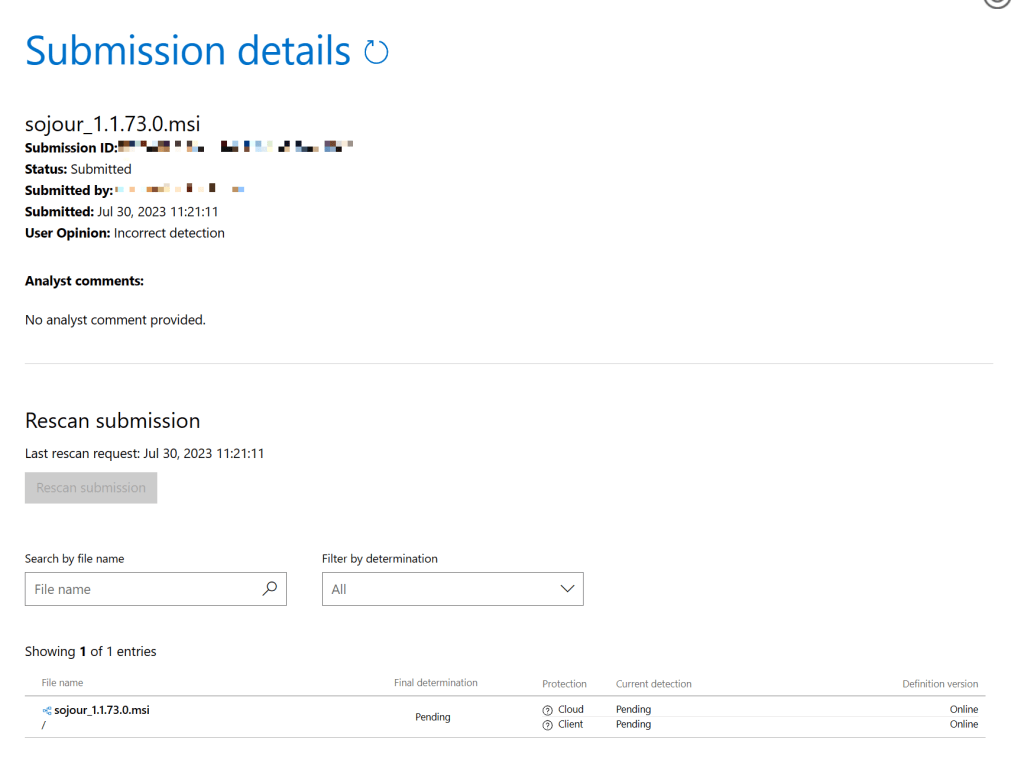
Alas, it is now a waiting game for Microsoft to perform their analysis.
I’ll let you good folk know when this is done.
Regards
RobP
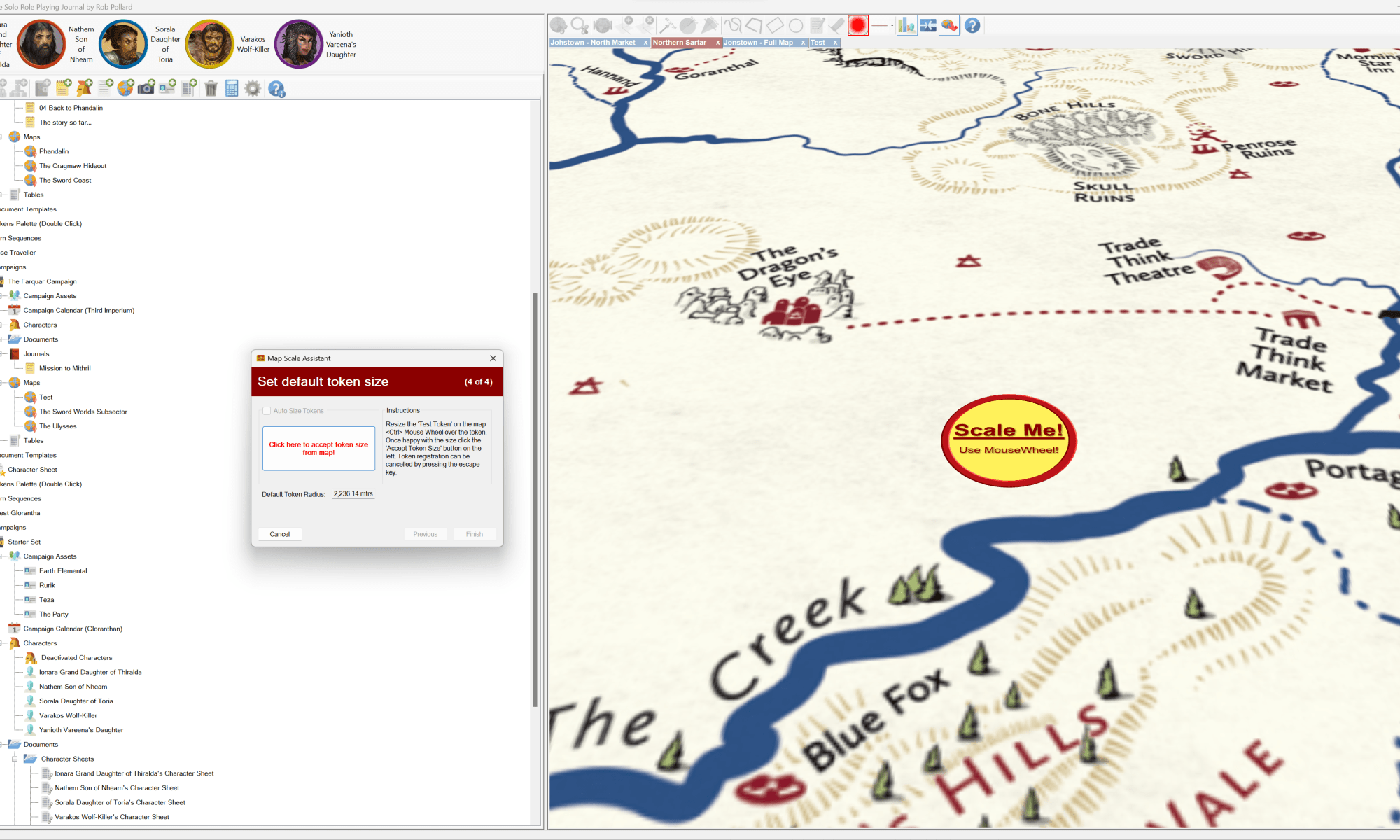
This version contains a number of fixes and enhancements.
The biggest enhancement has been the provision of custom token sizes on a per map basis (as opposed to relying on Sojour’s in built auto-sizing mechanism).
To achieve this the Map Scale Assistant has had considerable under-the-hood changes made to it. These changes should make it easier to use. Any alterations are now seen in real-time on the map, the cancel button will now undo all alterations, and each registration pane will now automatically update its defaults with information from the current map.
In addition, all the drag and drop code for map tokens has been significantly reworked to make the dragged tokens better represent their originating tokens. For example orientation and custom scaling are now taken into account!
Here is the full list of fixes and enhancements:
RPG-300 Occasional crash when using the drawing tools.
RPG-301 Give users the ability to pick a default token size for a map.
RPG-302 The tilt registration button (and others) need to be disabled during registration.
RPG-303 Maps were initialising an unnecessary vertex buffer – this should increase the max map size that can be imported! (This was a hold-over from Ancient Armies)
RPG-304 Resized tokens drag image is not the same size.
RPG-305 Alt GR and other modifier keys are being mis-read by Sojour due to Windows mis-reporting them. I got this fixed by replacing the Windows code with Direct-X. This should help non-English customers to be able to access their Nation’s custom characters without triggering many of Sojour’s auto-formatting features.
RPG-306 Rotated drag cursors don’t match token orientation
Another minor enhancement has been to the iconography for some of the mapping toolbar buttons – can you spot the differences? 🙂
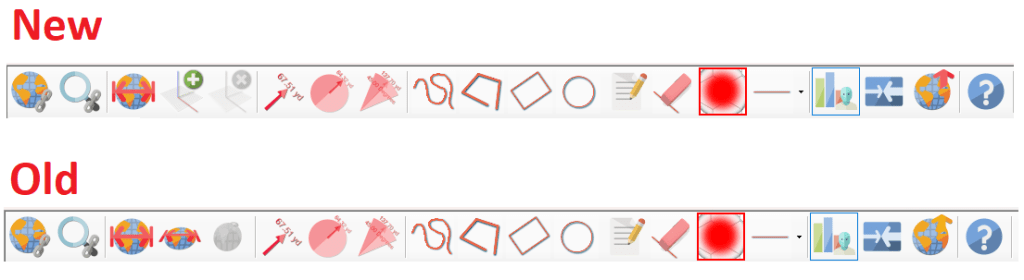
Hopefully, you’ll agree that the new buttons look better!
Alas, I have had to make a slight change to one of the map’s mouse wheel commands. Something I don’t like to do as users get to learn the shortcuts and automatically apply them. Changes such as this can trip them up.
In the past you used <ctrl> mouse-wheel over a token to resize it, and the mouse-wheel over a token to change its heading. These two have now been swapped around. So, mouse-wheel to resize and <ctrl> mouse-wheel to rotate.
This change was necessary to make the token size adjustments in the Map Scale Assistant flow more smoothly and I’d rather that the assistant and the map used the same shortcuts, hence the change.
I won’t go through the changes of the Map Scale Assistant as they are extensive. Instead, I have provided a video that has been uploaded to You-Tube that covers off the new functionality :
I hope you all like the enhancements and fixes
Have Fun!
RobP
 Sojour