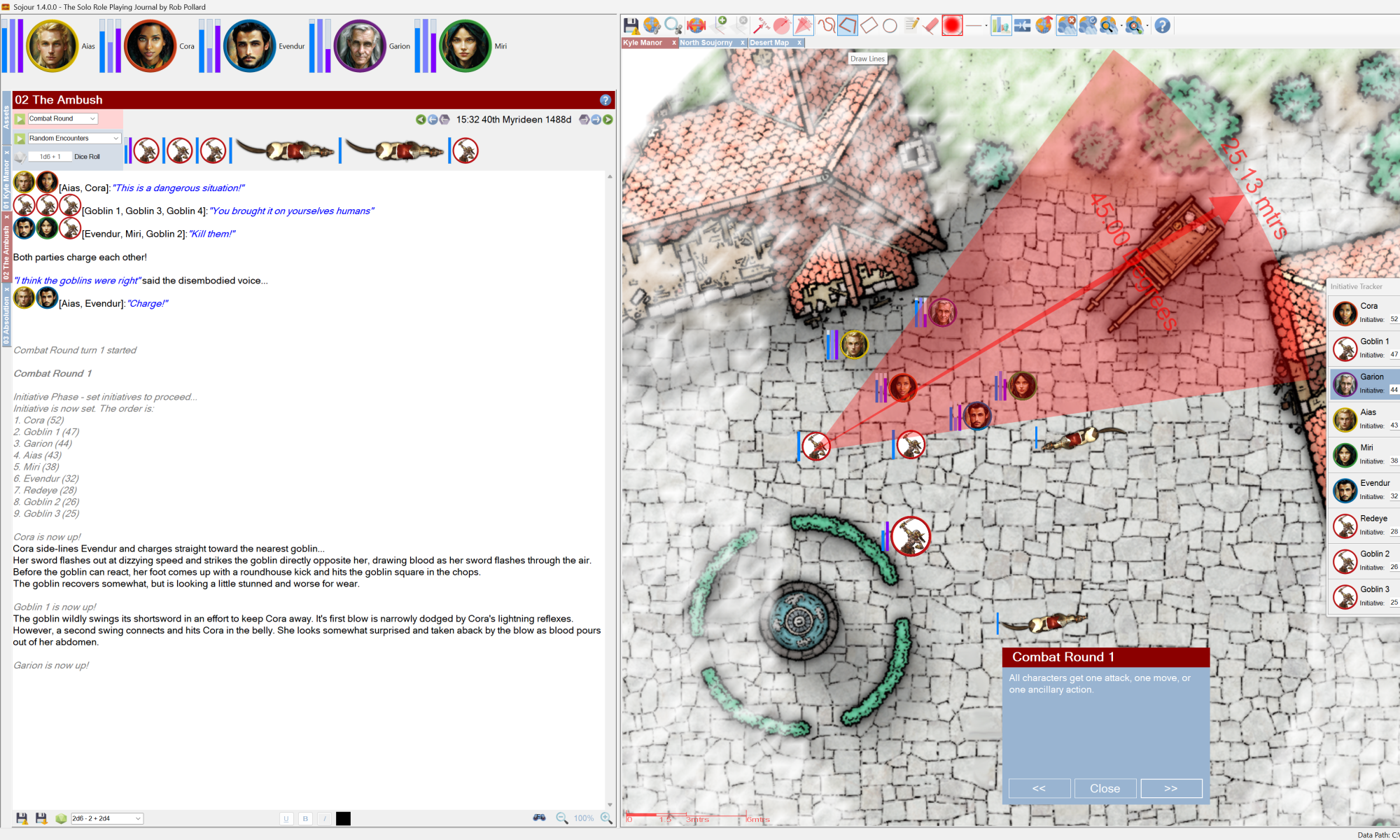

This is a bug fix release that addresses inaccurate map scaling that used to sometimes occur when scaling maps.
Remember the map scaling tool?
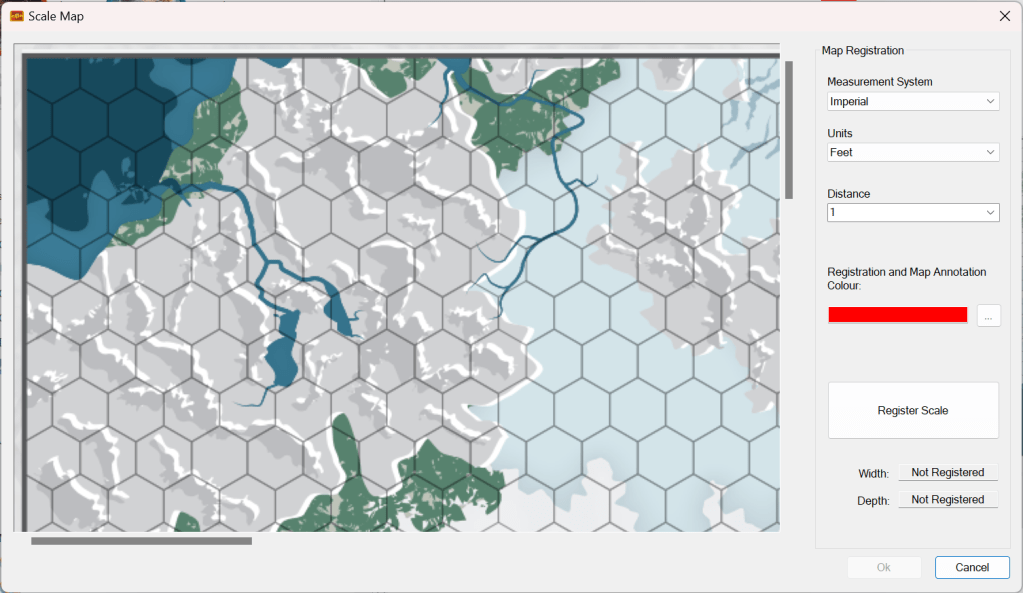
It is gone! It is no more! This tool has been completely replaced with a new Map Scale Assistant wizard.
The core problem with the above tool was that you never made your measurements directly on the actual map. Instead, you made them on a picture of the map within the scaling window. This was the root cause of the scaling issues.
Why should the above cause problems?
Well, it’s all down to a little secret within the map pane in Sojour…
Don’t tell anyone, but the map pane in Sojour is really a 3d map pane! – I just choose to display the maps in 2d only. (I’m saving 3d for some really cool future functionality!)
3d images – maps in this case – are displayed by using a ‘camera’ to project them into the 2d space of the window that you actually see. The problem I had with the original scaling system was trying unify the measurements on the picture-of-the-map with the measurements of the actual 3d map.
I had some cunning math to do this which was based on recreating the projection matrix of the camera so that I could use this to unify the scaling. But, as it turned out, that tended to produce small rounding errors, which can on occasion, lead to scaling discrepancies.
I had originally thought I could fix the math, but after numerous fruitless attempts I realised that this was proving to be an impossibility.
The only way to fully address this issue was to take a completely different approach. This new approach would hinge on allowing the user to take their measurements directly from the 3d maps themselves! Doing this would eliminate any rounding issues.
Hence the Map Scale Assistant wizard was born.
I’ll now take you through how the new wizard works – more information can be found within Sojour’s manual.
Firstly, the user opens the map that they wish to scale and then clicks the ‘Scale Map’ tool button.
This results in the first page of the wizard being displayed:
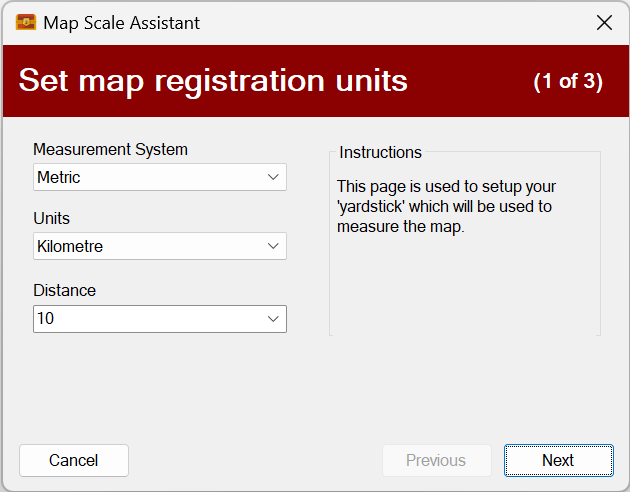
This page allows the user to set the ‘yardstick’ that they are going to use to measure the map. It defaults to the map’s associated ruleset’s measurement system. However, this can be changed to match existing map annotations.
In the above example I have set my ‘yardstick’ to 10 km.
Clicking Next results in the second page being displayed:
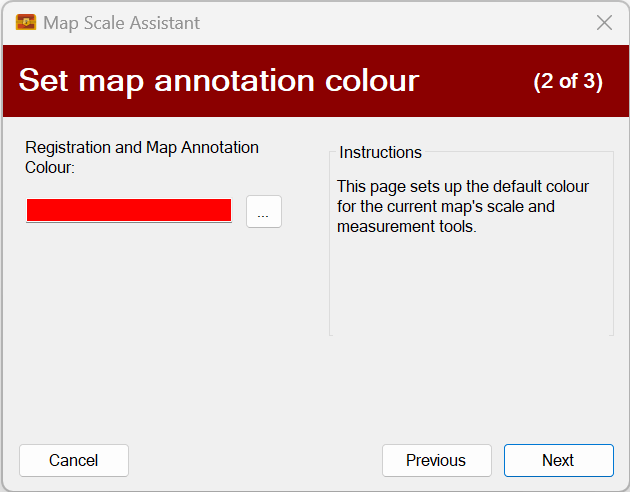
This page allows the user to set the map annotation colours. It defaults to annotation colours of the selected map – where it is set. Otherwise it defaults to red.
All map annotations, including the map scale and measurement tools will be displayed using the colour picked above. Each map keeps track of its own colours.
For this example I decide to leave it at red as this matches the current map perfectly.
Clicking Next results in the third and final page being displayed:
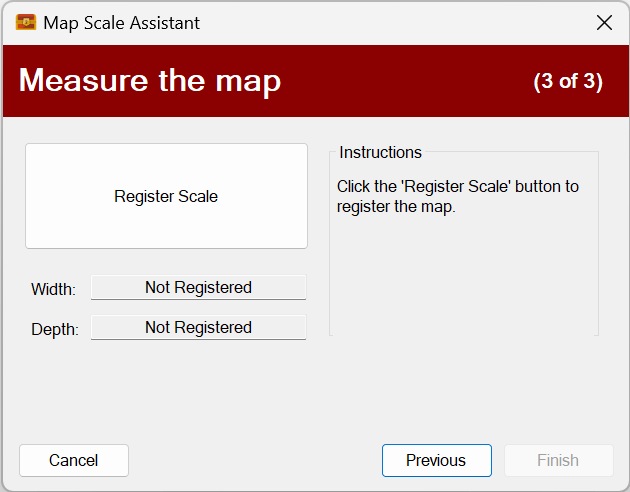
This is the page where the user will make their map measurements. This time on the actual 3d map rather than a picture of the map.
In the screenshot below I have clicked the ‘Register Scale’ button and have started measuring the map itself:

I have already picked the starting point of my ‘yardstick’ by left clicking the map. All I need do is drag the measurement ruler around until it measures 10 km on the map.
The map can be panned and zoomed whist attempting to take the measurement. This will help assure maximum accuracy.
Once happy, just left click the map once more to register it:
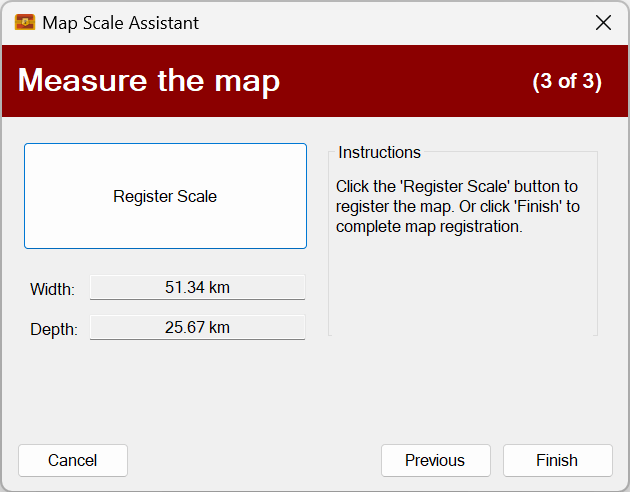
The results of this registration attempt are a map measuring 51.34 km by 25.67 km. If I’m not happy, I can simply click Register Scale to try again or even navigate back through the wizard to change some of the settings.
Once happy with the registration, all one need do is click Finish. This results in a perfectly scaled map! All assets on the map will automatically be rescaled to fit the new map scaling.
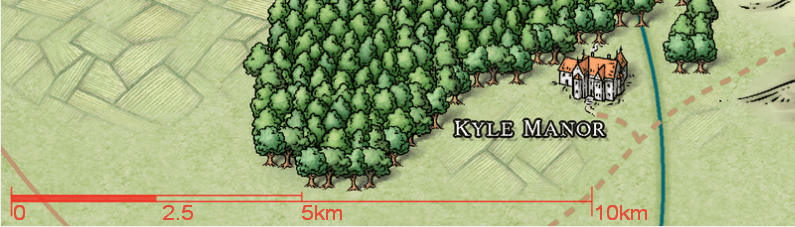
The scaled map now shows it’s properly scaled map scale in the bottom left in the chosen colour. This scale will auto-size as the map is zoomed in or out:
That’s it for this post. I hope you all find this new wizard a vast improvement over the original scaling tool!
PS: I’m still working on the custom views functionality too 🙂
In the meantime – thanks for buying Sojour and happy gaming!
RobP
 Sojour