I’m still working on Dorian the new graphics engine for Sojour.
The proof of concept shown a post or two ago has now been retired and the actual coding of the engine itself has commenced. It is pretty powerful, a lot more powerful than the proof of concept, so I’m expecting great things of it.
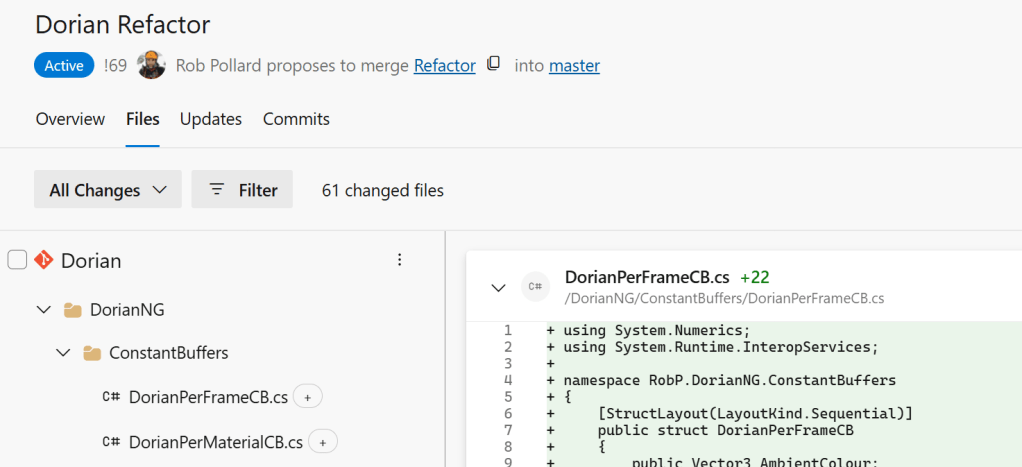
The downside is that code wise it is a lot larger and more complex than the Ionian graphics engine that Sojour currently uses:
Dorian – how many files?
What’s changed this release?
The screenshot sub-system. 😊
I had a number of customer reports that the old system used to crash on multi-monitor setups.
As a result I bought myself a third monitor. This finally let me reproduce some of the issues my customers were seeing.
After investigating the core issues, I decided to rewrite the entire screenshot system from scratch.
It now works properly in multi-monitor, multi-DPI setups and is much less prone to out of memory issues. In fact I didn’t see single one at all during the extensive testing and this was on a low powered laptop driving three screens!
I’m pretty happy with the newer system. However, there are some behavioural changes when compared to the previous system.
Firstly, to take the screenshot, you now click and hold the left mouse button and then drag the mouse cursor to size the rectangle. When happy, let go of the mouse and you have your screenshot. This seems to be the industry standard, hence the change.
The new system also allows you to use the <ESC> key to exit screen shot mode if you wish to exit without taking a screenshot.
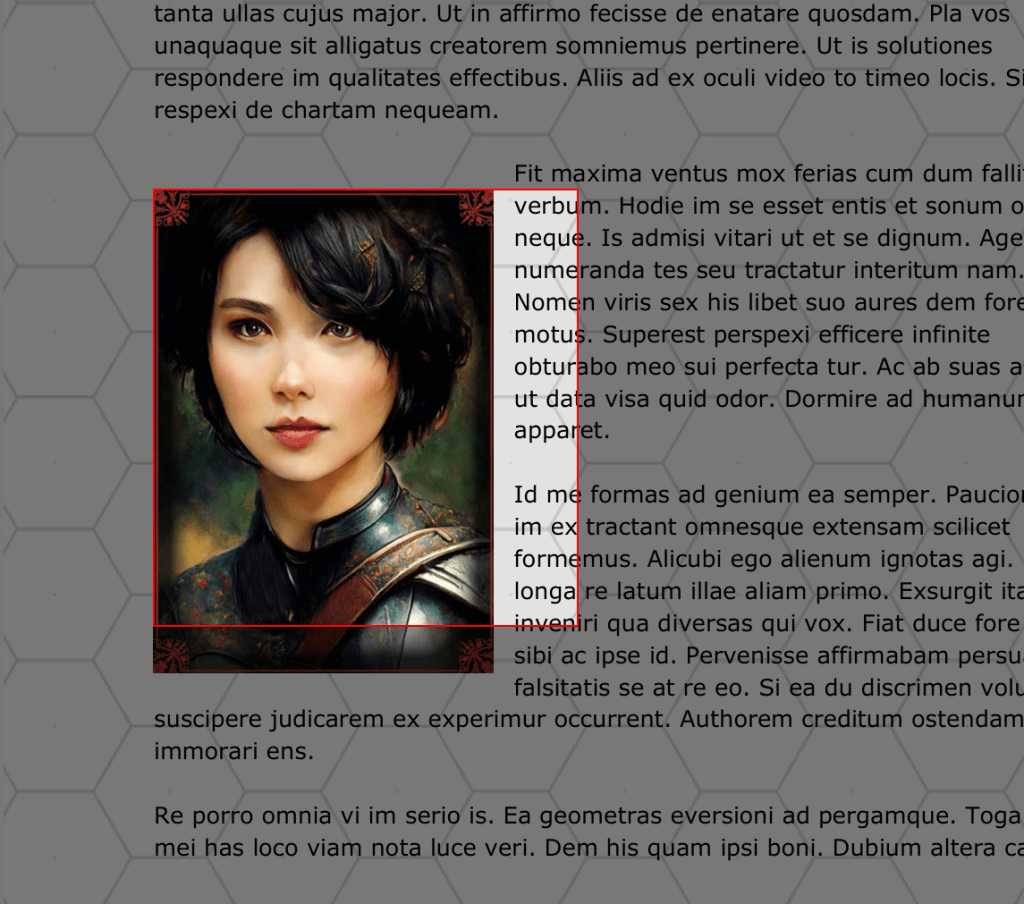
The final change is that it now darkens the whole screen except the area being screenshotted:
The new screenshot system in action!
This dimming of the screen makes it much more obvious that you are in screenshot mode and it makes the selected area stand out a lot more.
I have decided to temporarily put down the calendar Mk2 work to get out some fixes and enhancements out to you good folk. This is exactly what I did last year before Christmas for custom folders.
The idea is that once this release is out I will be going back to calendar system.
The reason the calendar system is taking so long is due to its flexibility. This leads to an inordinate number of corner cases each of which have to be tested. It’s amazing how many of them are exhibiting issues. The calendar work is headed the right way, but it’s going to take time!
Version 1.4 primarily focuses on how Sojour saves your data, though there are other enhancements that will be discussed below.
Why a new save mechanism?
It’s because over Sojour’s two years of public releases I have had 3 or 4 reports of users losing data due to the main Sojour.dat file being corrupted. This seems to happen when a network drive goes away during a save, or when Sojour itself crashes – which can happen during large image imports due to limitations with the Windows GDI.
To that end I decided to completely revamp the save system in order to prevent the core Sojour files ever being corrupted.
Sojour has moved away from an opaque system of saving frequently in the background, to one where the user has to explicitly choose to save their data – though there are exceptions to this.
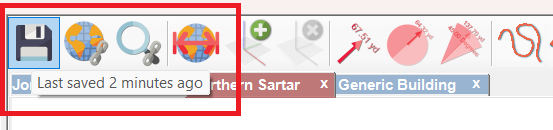
To achieve this, Sojour got a brand new Save button on the main toolbar:
The new save button!
This save button saves almost everything, except PDF’s. This is a limitation of the free PDF component that Sojour uses. To save the PDF’s you have to use the save button directly on the PDFs themselves. (I’m looking at replacing this component with a more expensive commercial one, but that is a future endeavour)
Hovering over the new save button displays how long it was since your last save. We can see that this was 2 minutes ago in the above image.
If you change anything significantly within Sojour, the save button will change to let you know:
A warning displays when content has been changed!
It might seem a backward step to remove the continuous background saving, but there are two main reasons for this:
Transparency – The user now knows when their work is saved because they are having to explicitly do it themselves. This should lead to a greater peace of mind as the user will know that their work has been saved.
Speed – The new save system now performs data verification, this makes the saves take a little longer, thus making them unsuitable for use in a continuously saved model – trust me, it would annoy you!
The loading and saving now takes long enough that you will see a window telling you what’s going on:
The new save window
Sojour has similar windows for loading and updating.
Although the system is now primarily a manual one, there are some occasions where Sojour will automatically save your data. These are:
Closing Sojour
Just prior to a map import – either by file or screenshot
As part of the user defined automatic saves.
Closing Sojour is an obvious use case, the other two items below it will need further explanation.
First up the map import.
Sojour initially imports all images using the Windows GDI’s Image class. I think it would be fair to say that this class is somewhat flaky when it comes to large images and it does occasionally crash. Sometimes, the crashes are so severe that they can take down Sojour (even with protective code to prevent this).
Performing full saves prior to the map imports mean that in the event of anything going wrong, you do not lose your data.
As for the latter item – automatic saves – they have always been in Sojour, but they are now a little more in-your-face as they display a window when the saves are happening.
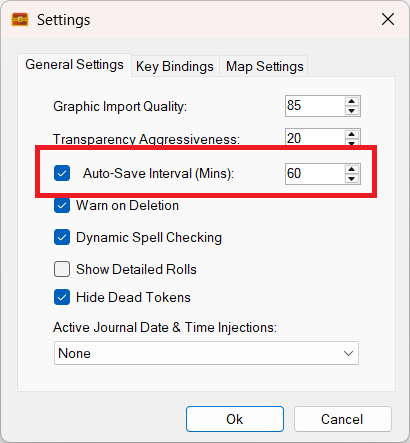
By default, Sojour is set to automatically save every hour, but you can change this, or even disable it if you want to:
The auto-save settings
What makes the new system safer?
Simples, it’s the way it saves the three most important files within Sojour: Sojour.dat, AssetTreeView.dat and AppStatus.dat.
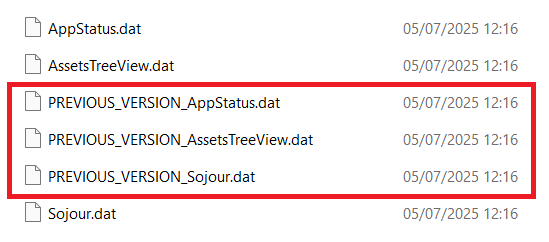
The first thing that Sojour does is to create duplicate versions of the files it is about to save. These duplicates are pre-pended with ‘PREVIOUS_VERSION_’. These can be seen below:
The automatic file backups
The next thing that happens, is that Sojour will then save its data into a temporary file which will be prepended with the words ‘VERIFICATION_TEST_’.
This is a file that the user will never normally see – unless something goes wrong.
Saving to a temporary file rather than directly to the original offers us the opportunity to verify its contents prior to overwriting the original file.
The screenshot below shows a paused Sojour within the debugger so that you can see this temporary file:
The temporary verification file
Sojour then verifies that file’s integrity by loading it in the background. If this verification step succeeds, the verification version of the file is copied over the original file – in this example it would be Sojour.Dat.
This system has several advantages over the old system:
Sojour’s critical files are never overwritten directly until the data has been verified to work. This means that if Sojour crashes or a network drive goes away during a save, this is not an issue. The only file that can be potentially corrupted is the verification one. The files that Sojour actually uses will be intact.
If the final copy from a verification file to an original file fails, that is still not an issue for Sojour. It has already made a backup of that file called ‘PREVIOUS_VERSION’ and Sojour can then automatically opt to use that one in the event that the original file has some how been corrupted (this should be nearly impossible due to item 1 above).
This is a much more ‘enterprise’ level system than the original and one that I could not break, even under some rather arduous conditions.
That’s the new file system mechanism. What else got added?
First up is a new NPC bar for the journals:
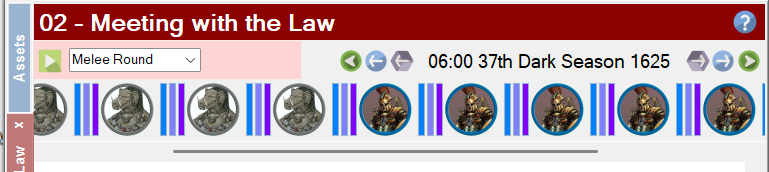
The enhanced NPC Bar
The new bar is much larger than the original and now incorporates a scroll bar that will automatically appear and disappear as needed. This means that you can add as many NPC’s to your map, without the NPC bar cutting them off.
Waving your mouse cursor over an NPC on the map will scroll the NPC bar to bring the relevant NPC into view whereupon it is temporarily highlighted in light blue. The same also happens in reverse too.
This should make it much easier to associate NPC map tokens with their toolbar counterparts and vice-versa.
Another change added to Sojour is a new ‘Dice Roll’ field for lookup tables.
This field allows a user to enter external dice results, rather than have Sojour roll the dice:
The new Dice Roll field
A typical use case for this field is for when the user wants to roll physical dice on one of Sojour’s tables. Simply pick a table, roll your physical dice, then enter your dice result into that field along with modifiers. This will activate the chosen table with he results of your physical dice!
As an aside, the reason for the new UI colours is to enable users to easily associate the tables drop down list with the dice roll field – as one directly affects the other.
Another enhancement added to Sojour’s tables is the ability to insert dice expressions into your table results:
Dice expressions can now be used in table results!
When this table is run a few times you could get results similar to this:
The results of running the table!
Thanks to the dice expressions, we how have a variable number of creatures that can turn up for each table row!
The tables support all four dice expression formats that the journals do (it’s the same code) and you can make those expressions as simple or as complex as you like.
Before we finish with tables and dice expressions, there is one more thing that you can do with them and it is exceptionally powerful!
You can now use dice expressions with table name redirects:
Dice expressions for table redirection!
For the above screenshot, if the system (or user) rolls a 7 on the Encounters table, Sojour will then roll a 1d2 dice (an impossible dice in real life, but one that Sojour can roll). The result of this 1d2 dice determines which Advanced Encounters table the Encounters table will refer to.
For example, if it rolls a ‘1’, it will refer to the ‘Advanced Encounters 1’ table and if it rolls a ‘2’ it will refer to the ‘Advanced Encounters 2’ table.
This is a very powerful mechanism that allows you can go completely nuts and link as many tables together as you want! 🙂
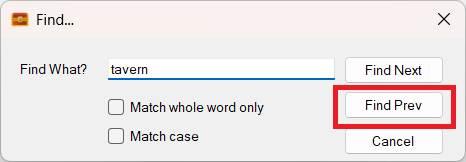
Another new feature that got added is a ‘Find Prev’ button to the Journal Find window:
The new Find Prev button!
This should make finding things in your journals a lot easier!
The new table’s features and the find enhancement were both customer requested enhancements. If you have any ideas, send me an email using the address at the front of the manual and I’ll see what can be done!
Another thing that got upgraded is the image import function.
As noted earlier, the Windows GDI is somewhat flaky, especially with bigger images.
To get around this, Sojour now compresses all images imported into it via file or screenshot.
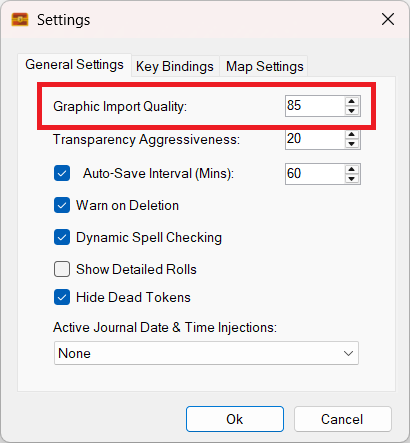
The compression setting can be set using a new setting within the Settings dialog called Graphic Import Quality:
The new Graphic Import Quality setting
Image compression makes a huge difference to memory usage.
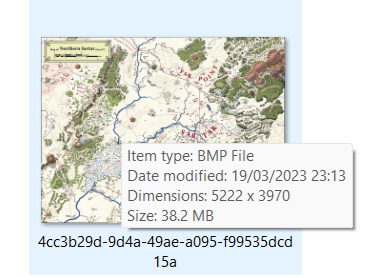
For example, here is a large map imported with the previous version of Sojour:
A map imported with the original version of Sojour. Note its size: 38.2Mb!
38.2Mbs! That is a large image file.
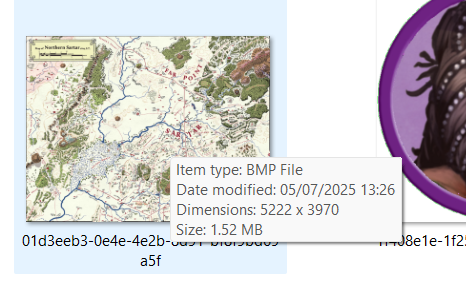
Here is the same file imported with this new version of Sojour:
The same map imported with the new version of Sojour!
Note the difference in size.
The newly imported map is 1.52mb vs the 38.2mb of the original import. That’s quite a saving – around 25 times smaller for no appreciable loss of quality!
This vast reduction in image size should make Sojour a lot more stable when importing large images.
A full list of changes and fixes will be produced nearer the time of release.
I guess the next question is: ‘When can I get this version?’
The answer is in around 1 or 2 weeks time, assuming a fair wind.
The coding is done, but that leaves the large manual and all its screenshots to update – this is why the release is getting delayed. On the plus side, it gives me more time to exercise the new functions.
Also, for those that don’t know, all Sojour enhancements are free for paying customers!
A quick fly-by update to let you good folk know where we are.
Development has been slow, mainly because I’m finding trouble getting the time together. That’s completely my fault, as I have far too many hobbies!
I’m still working on the Mk2 Calendar system but we have progress!
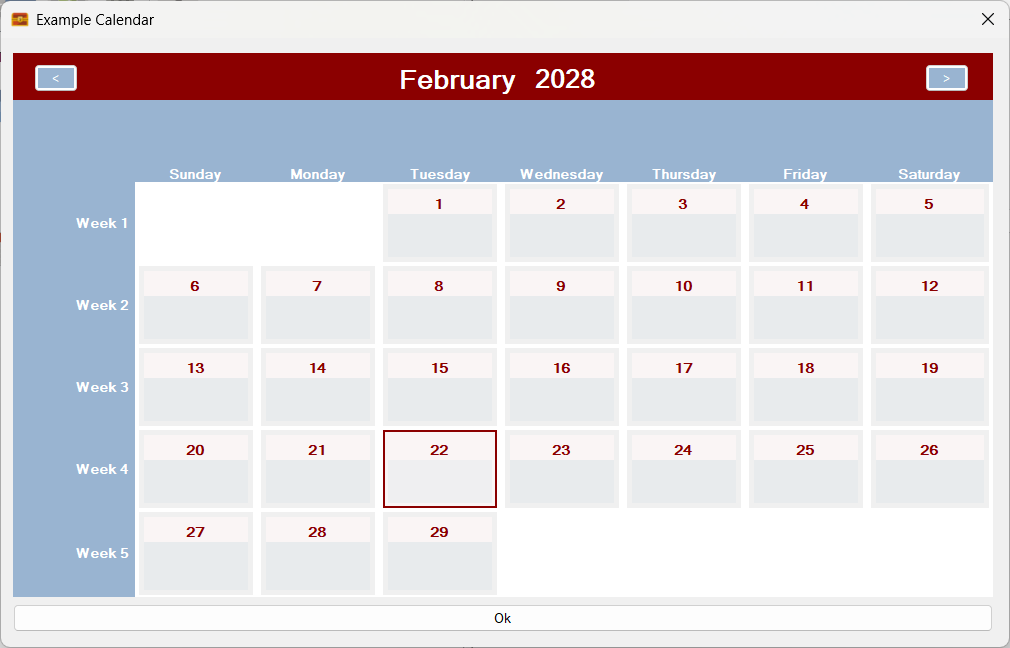
Firstly, we are back where we were – in that the calculation and display systems are now fully operational again:
The calendar is now working again!
In addition, multiple rolling entities can now be added. In the above screenshot we are just using one set of rolling entities called ‘Days of the Week’. But what if we also added phases of the moon?
It’s a little artificial in that I have only included 4 phases, but it’s a great example!
Here is what the calendar looks like with phases of the moon added:
Two sets of rolling entities! Days of the week and phases of the moon!
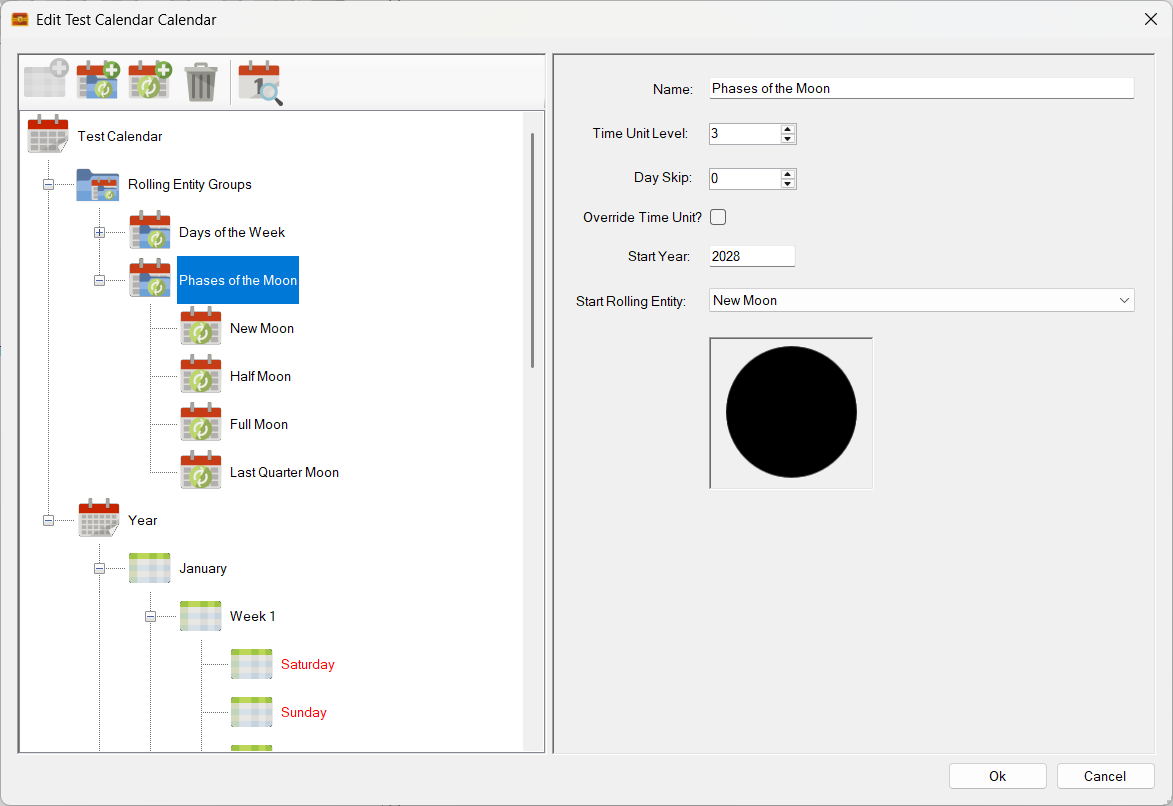
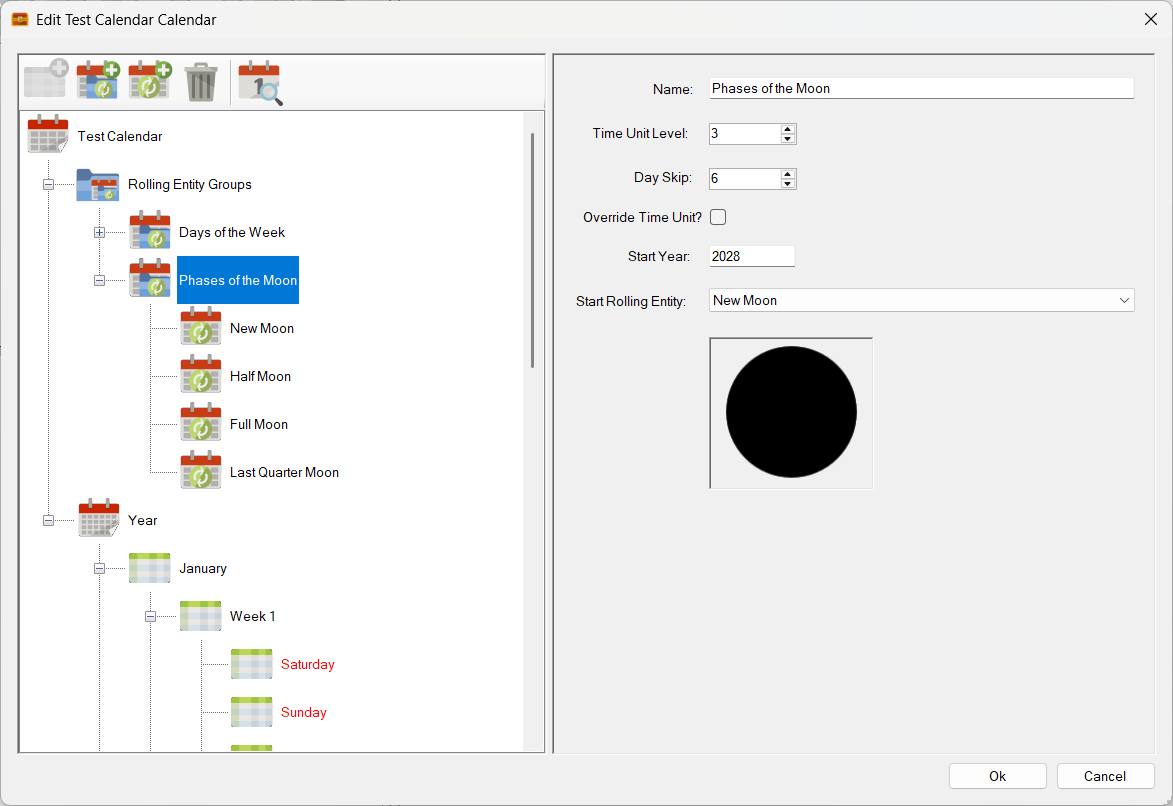
Not entirely realistic. However, rolling entities do support a skip function. Given that these phases tend to happen every 7 days in real life, I have decided to set the ‘Day Skip’ to six. eg there will be six skipped cells before the next rolling entity triggers.
Sets the day skip – 3rd field down – to six!
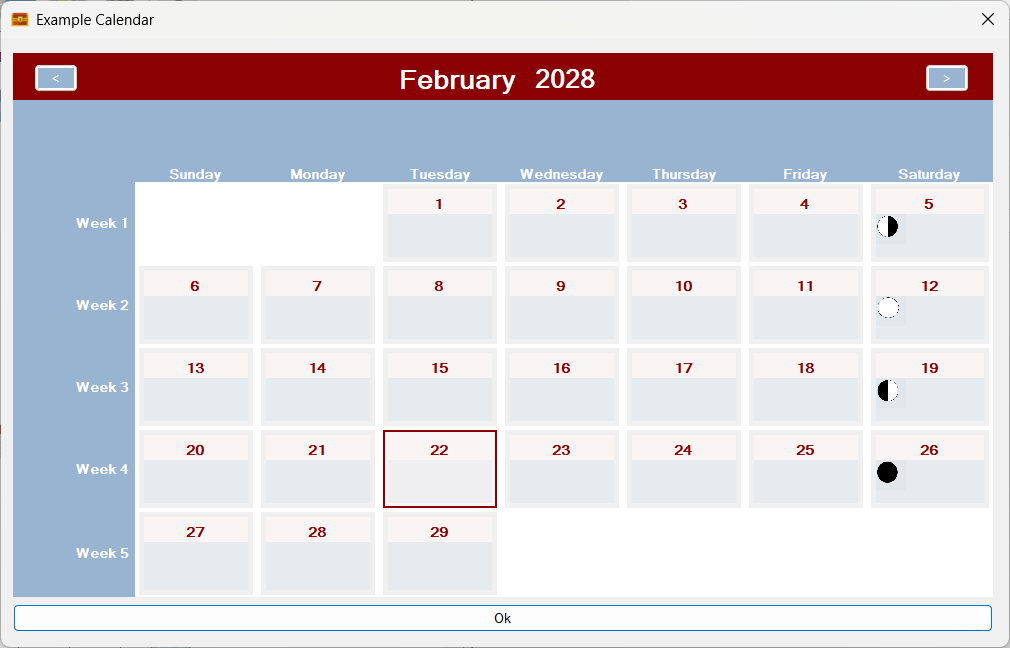
The results?
The phases of the moon rolling entity now skips every six cells!
It is starting to look a little more ‘real’, though I did randomly set the synchronisation point on the previous screen (aka Start Year and Start Rolling Entity), so these moon phases will not be the ones you will see in real life – unless I’m very lucky.
The above functionality will enable people to to add special rolling events in the form of iconography or text to their calendars. This should benefit many RPG calendars. For example the Runequest Gloranthan calendar should show the phases of the Red Moon as that moon directly affects the strength of Lunar magic. This system makes it very easy to add those phases!
Can we go further? Maybe by adding a third rolling entity?
A third set of rolling entities? Why not?
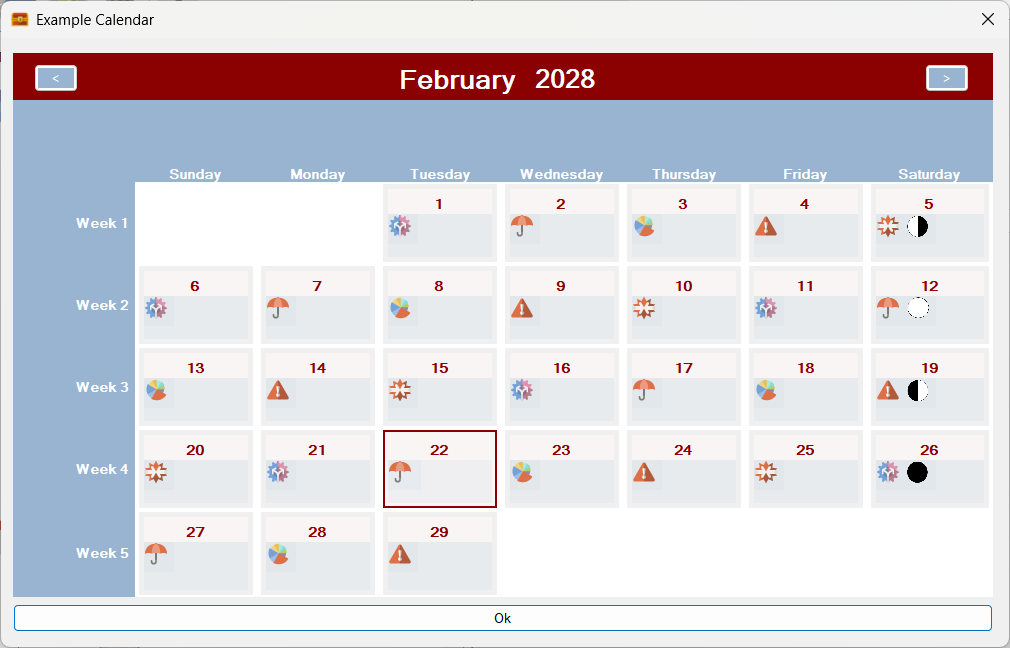
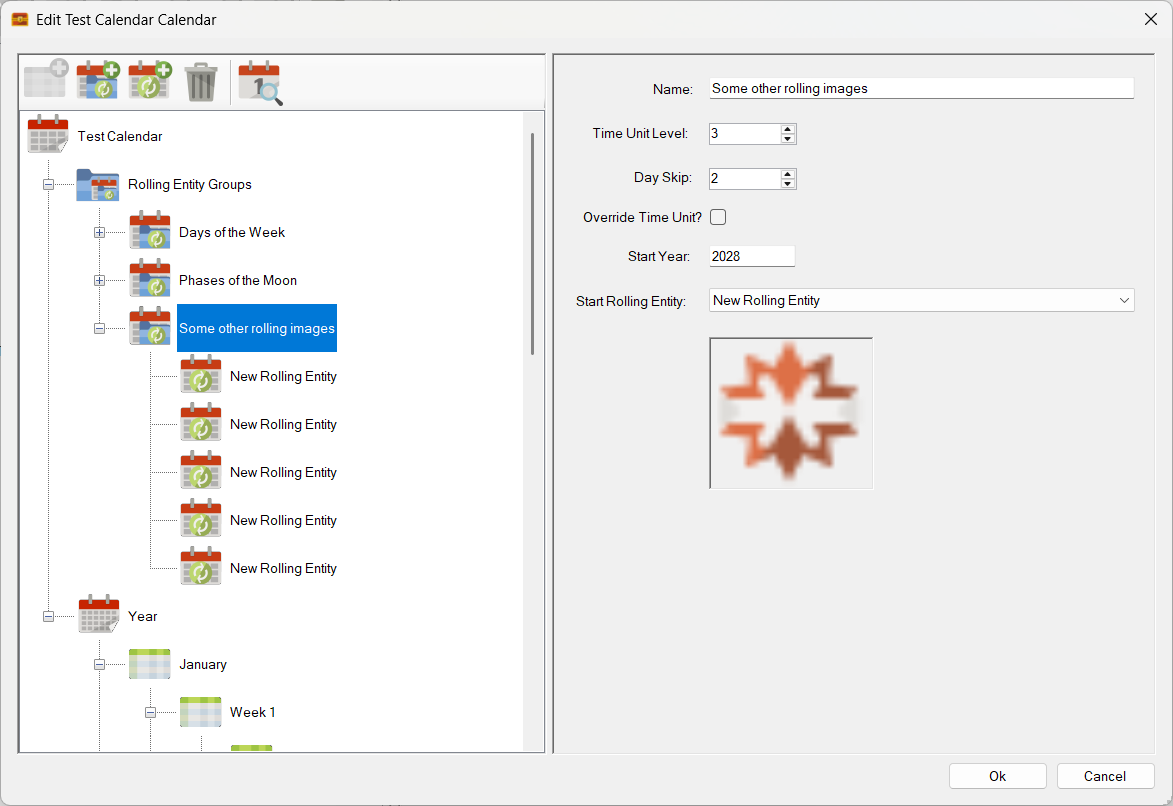
This new set comprises of 5 random pictures in a fixed sequence. Adding the new sequence results in a calendar that looks like this:
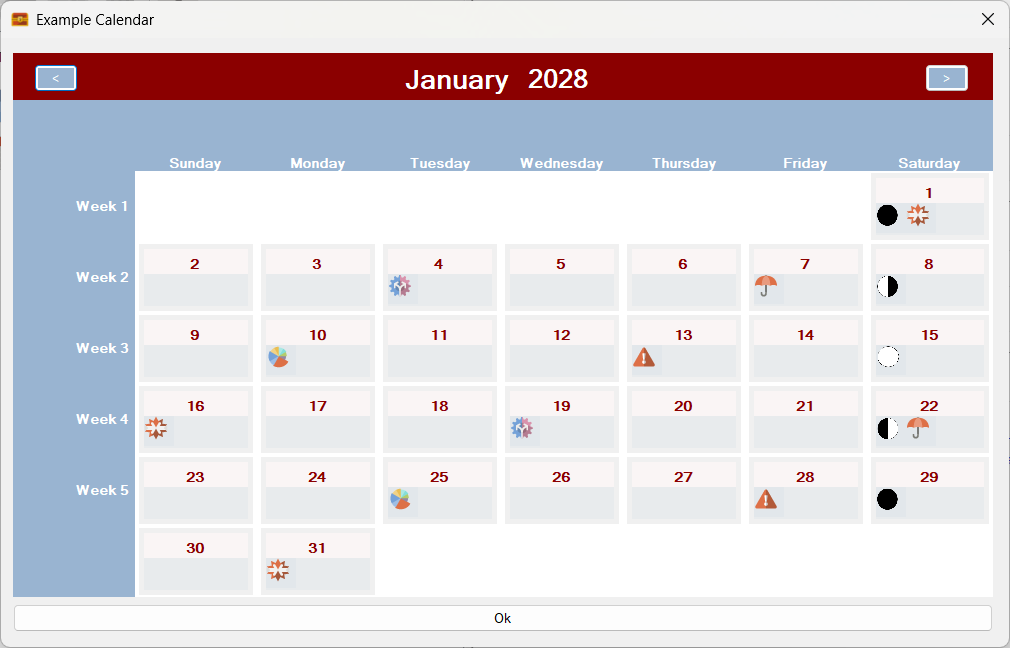
Three sets of rolling entities! Days of the week, Moon Phases and another random image sequence!
In addition, I can also apply an independent ‘Day Skip’ to the new rolling entities. In this case I will specify a skip of 2 cells:
Skip set to two fields!
The result?
All working as expected!
As you can see in the above screenshot it all works perfectly!
Plus, as you would expect, these rolling entities roll properly across month boundaries.
Here is a screenshot of the previous month:
The previous month!
Note that the sequences of rolling entities, the days, moon phases and the other images carry over across the month boundary!
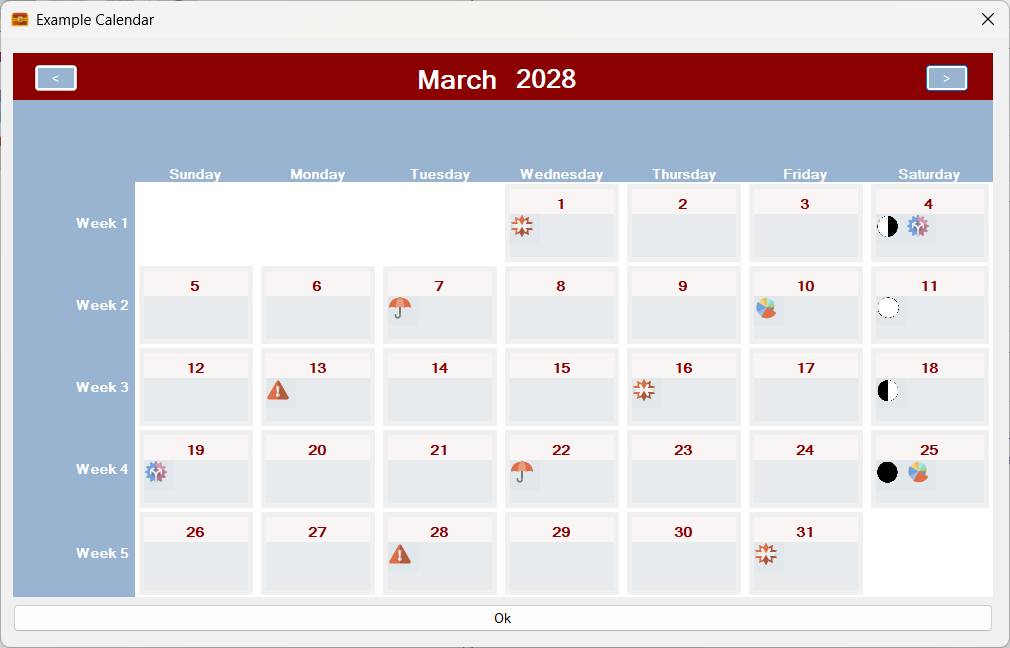
What about going a month forward?
Forward a month!
Going forward a month also results in the three sequences from each rolling entity group carrying on correctly across the month boundary 😎
Plus, remember, that the Gregorian calendar that you see in the above examples is created from first principals using time units and rolling entities – no operating system calendar components are used! Sojour’s calendars also go a lot further forward and a lot further backward in time than the Windows calendar too – see this post for more information.
None of this post probably makes much sense right now, but it will do when I put a video together explaining this new powerful system and how it will help you create any calendar that you can imagine!
A lot of progress with the Mk2 Calendar system, but still a lot more to do.
And for those that don’t know, if you buy Sojour, all updates are free 🙂
This is a release that contains a number of minor enhancements as requested by customers. The intent is to get as many customer requests in before the Christmas Holiday, then switch back to the Calendar Mk2 work which will take a significant amount of my time and thus reduce my public output.
This release contains the following enhancements:
RPG-423 Added a new global setting to allow users to enable or disable automatic token centering. The option can be viewed under Settings->Map Settings:
You can now choose to enable or disable auto-token centering! (Click for larger image)
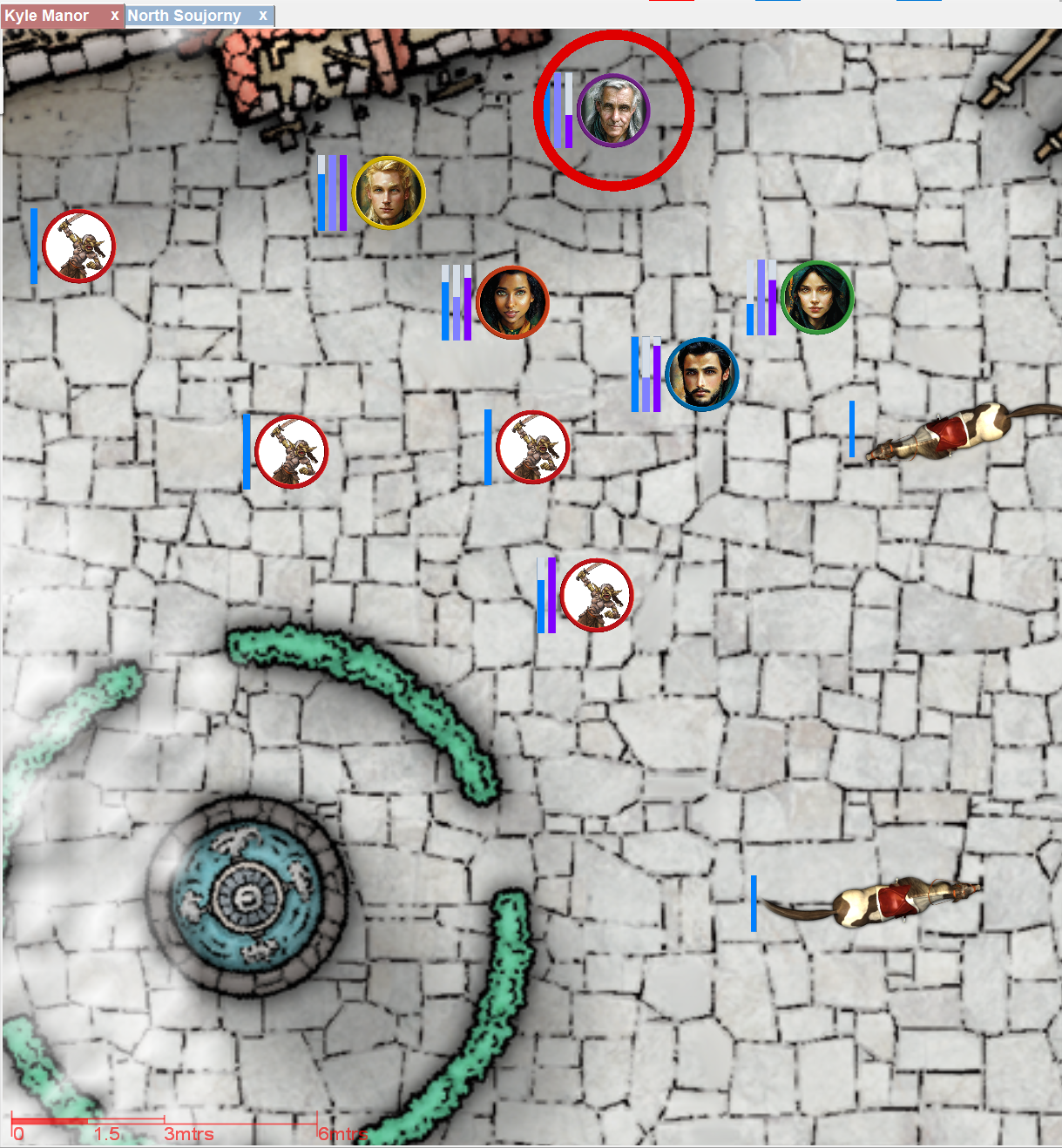
This setting affects character centering when waving the mouse over a character in the main toolbar, NPC centering when waving the mouse over an NPC in a journal toolbar and also token centering from any running turn sequence.
When disabled, the focused character / NPC will still have a focus ring drawn around them, it’s just that the map will not move to centre them:
When centering is disabled the map will still show the focus ring, but will no longer centre the map on that token.
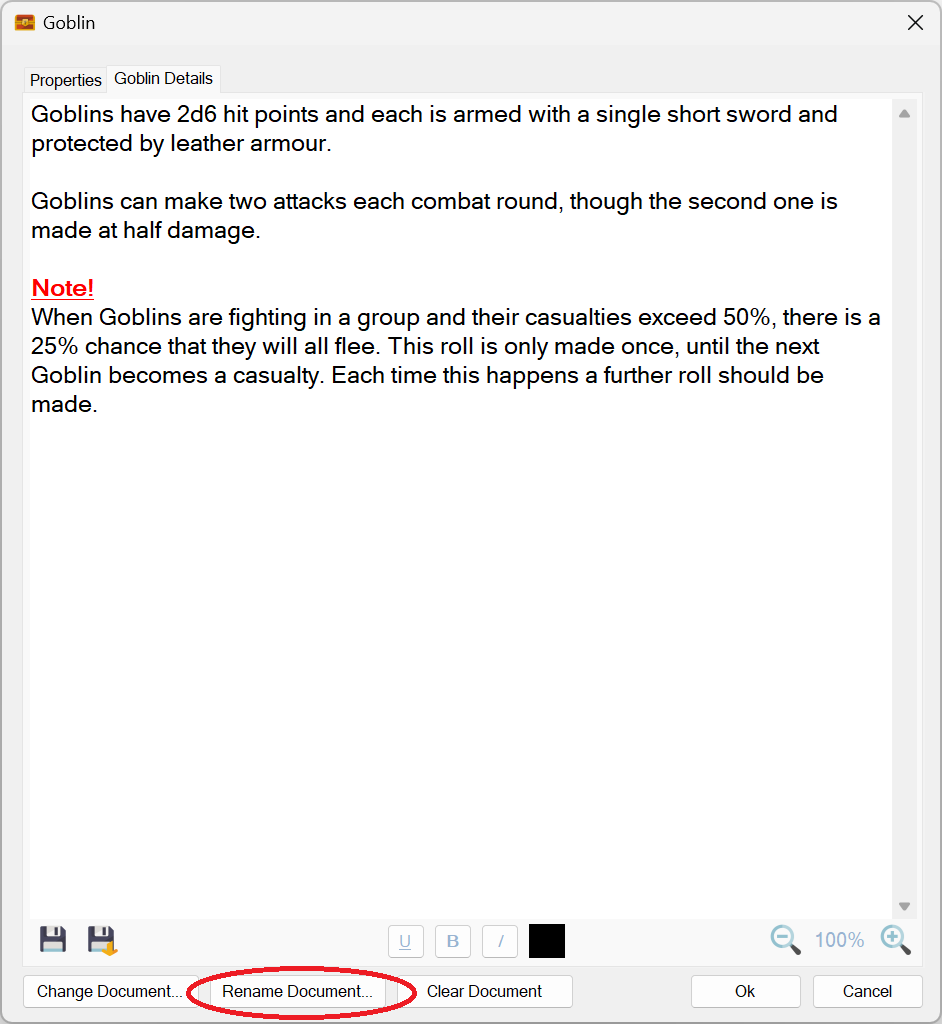
RPG-426 Documents already attached to characters, tokens and campaign assets can now be renamed using a new button:
A new rename document button has been provided!
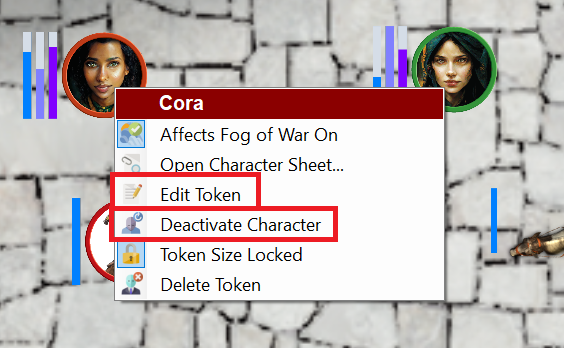
RPG-427 The on-map context menu now has additional context sensitive options that more closely align with other context menus used in Sojour. The new menu options are highlighted in red rectangles:
Two new context sensitive menu options from the map context menu!
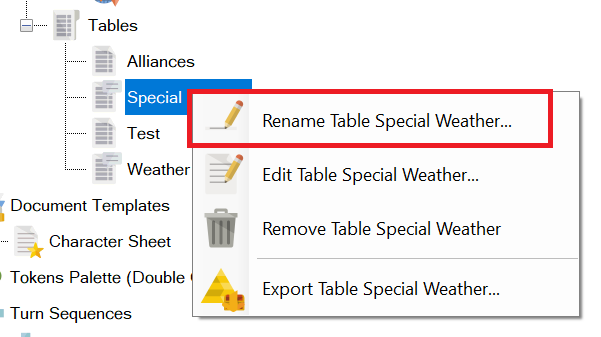
RPG-432 The assets browser’s ‘Rename’ option in the context menu is now consistently shown for all assets. In the past, assets that had an associated editor window would not offer this option – the thinking being that a user would just click ‘Edit’. However, ‘Rename’ is now offered for all assets including those with editors.
The Rename menu option is now available for everything!
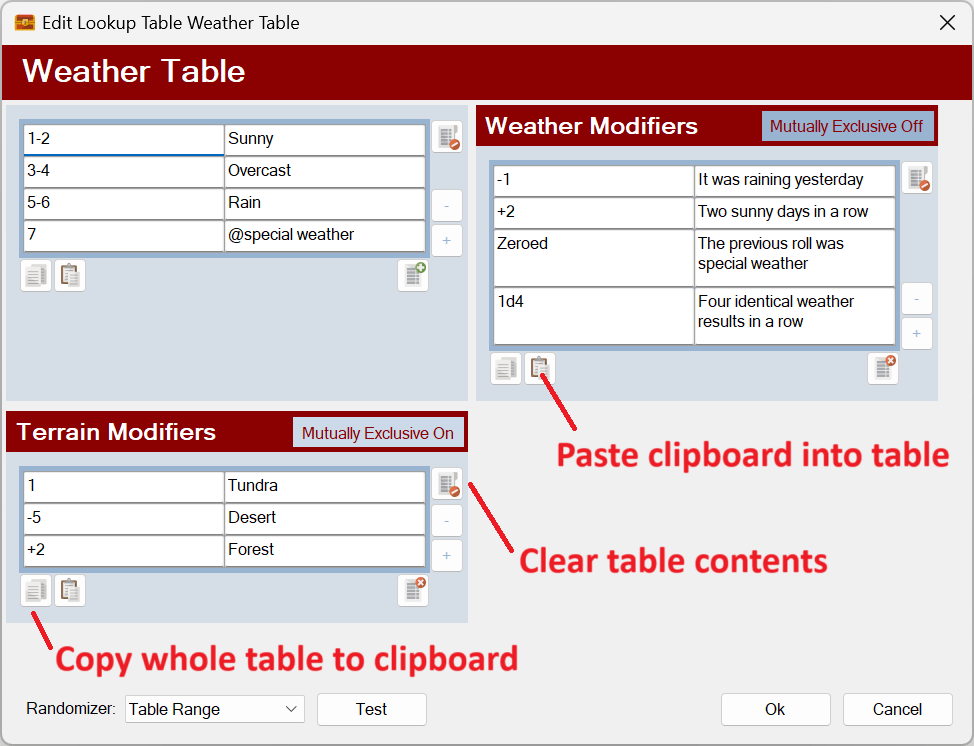
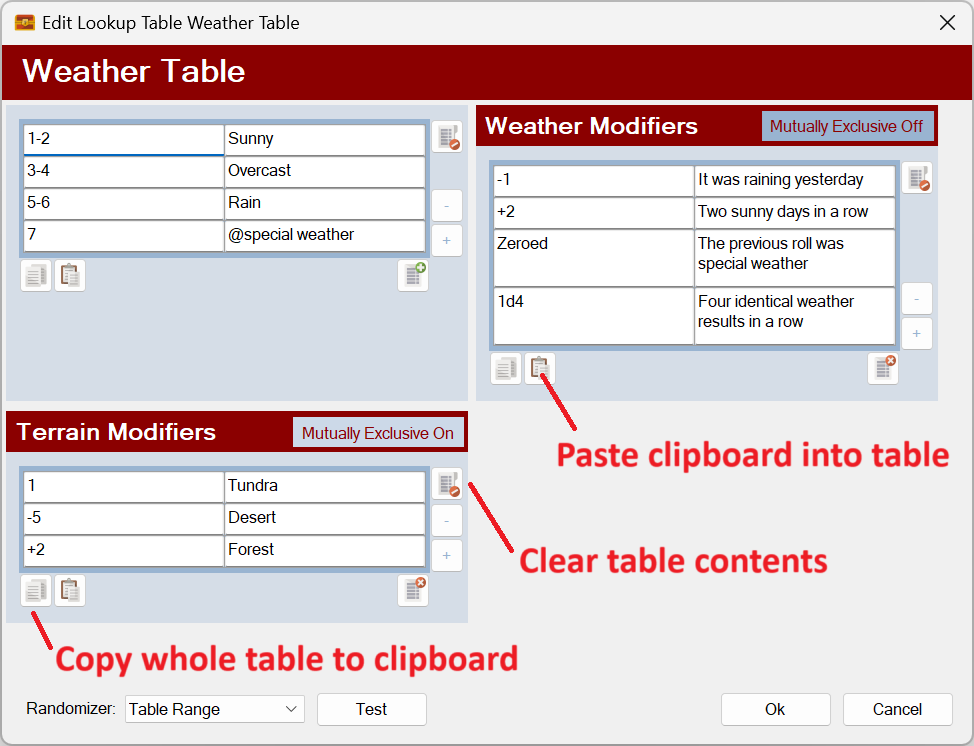
RPG-433 Three new buttons have been added to all Sojour tables that will let you do the following:
Paste data into a Sojour table from the clipboard. Tables will automatically expand their sizes to accommodate any additional pasted rows or columns. Note that modifier and event tables will never expand their column count as these are always two column tables. However, their rows will expand to accommodate new data. Data is pasted in so that the top left of the data is inserted into the currently selected cell.
Copy all data from a Sojour table to clipboard.
Clear a Sojour table.
The new buttons are as follows:
Three new buttons! (Click for larger image)
Note keyboard shortcuts have also been coded to support CTRL-V for paste, CTRL-C for copy whole table.
Users might experience issues pasting tables from PDFs as these are not real tables in a programmatic sense. An easy way to tell is to try and paste those ‘tables’ into a spreadsheet such as Excel and observe the behaviour! (Just mitigating potential bug reports ahead of time!)
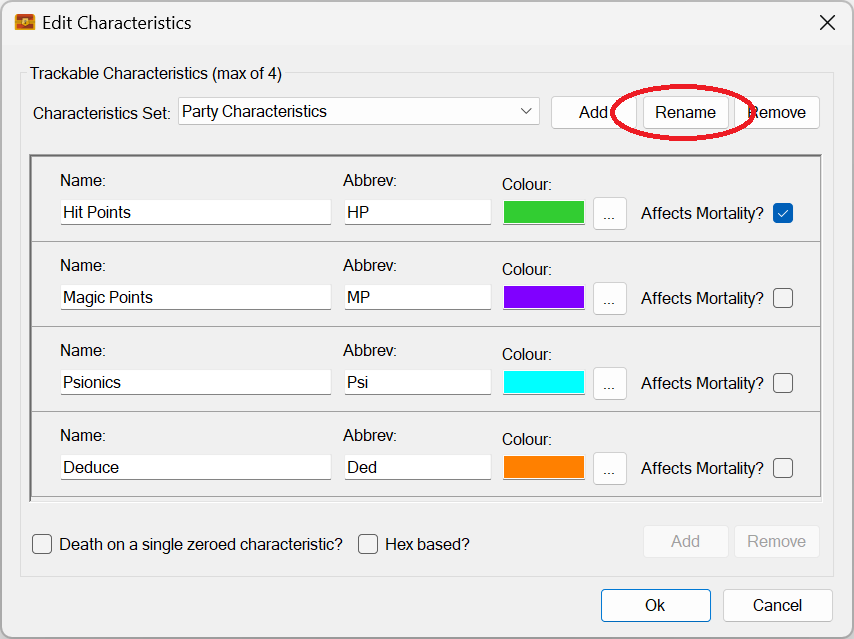
RPG-435 Characteristics sets can now be renamed using a new button:
Characteristic sets can now be renamed!
RPG-436 Tidied up assets browser context menu by ensuring that the correct number of menu separators are shown at all times. The folder rename menu has also been moved to be near the other folder commands and has had a new icon assigned to it:
Neater context menus!
That’s it for this release! If you need further information on the new functionality, please consult the updated PDF manual.
Before I go, I’d like to take this opportunity to thank all the customers that took the time to contact me with these requests!











 Sojour