This is a minor release that I thought I’d get out of the door as the new drag and drop code makes for a much smoother user experience.
Changes for this release:
RPG-365 Enhancements to all drag and drop code. In the past, a drag would be initiated the moment the left mouse button went down on an object. This caused the UI to be a little squirrelly – especially in the treeview. One example where this this would manifest itself was when double clicking a treeview node only to have a partial drag and drop start – this was always a little disconcerting. In addition, Sojour used to need safety code to limit dragging actions on the map. This code had the occasional unwelcome side effect of making map tokens undraggable on the very first click – this issue was plain annoying. All of this has now gone away! The drag and drop code now follows Microsoft’s recommendations and all drag and drops should now perform smoothly, with no missed or unwanted drags!
RPG-366 Sojour’s user settings and preferences, which also include the directory you are using to play your games are now migrated across upgraded versions of Sojour. This should reduce the kerfuffle during upgrades!
Before I start with this post proper, I’ll just go over the results of a question I asked in my previous blog post:
“Would you prefer a slower release cycle – say once a month – to allow for more testing? Or do you prefer the current weekly cadence with an increased risk of bugs being introduced?”
Thank you all for your responses – it’s been much appreciated.
The result was that an overwhelming majority of you – 84% – wanted me to stay with the current release cycle.
To quote from one of the respondents:
“I like the current “Elon Musk like” fail forward releases. Your hard work is very much appreciated.”
This fills me with some relief, as one of the issues of being a lone software developer is the perpetual dread of dropping ‘that’ release that breaks everything.
Whilst the perpetual dread is probably a good thing, it’s good to know that my customers are allowing me some slack to occasionally drop the ball in the name of progress.
I know the results aren’t going to make everyone happy, but on the plus side, you could just skip a few releases. Sojour’s built in updaters are designed to automatically work from any prior version, so skipping releases will not present an issue – you will not miss out on anything!
Now back to the release!
v1.2.28.0 saw Sojour’s filing system getting a massive upgrade thanks to feedback from many customers.
In the past, you were stuck with having your data saved under Documents/PollySoft/Sojour.
Not any more! 🙂
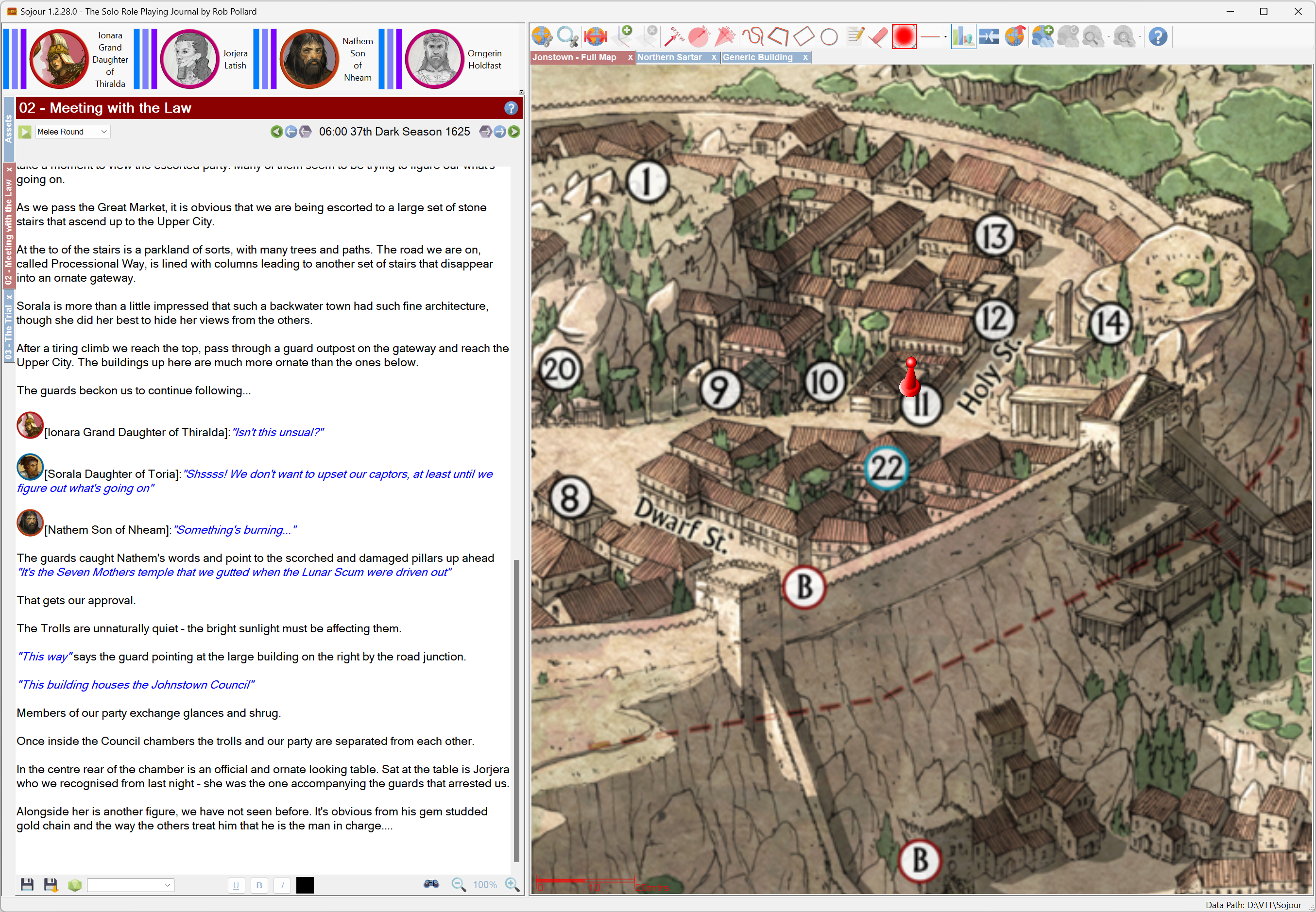
Click for larger image!
If you closely examine the above screenshot you will notice that the status bar now shows where Sojour is accessing its data from! In this case I’m using some folders on my D:\ drive.
Sojour’s data can now be stored practically anywhere. Sojour will perform the relevant checks to see if it can access your chosen folder and if it can, that folder is in!
When you first start Sojour you will be presented with this screen (if it can’t find any data):
Most users will click ‘Yes‘ and have Sojour store its data in the usual place of Documents/Pollysoft/Sojour.
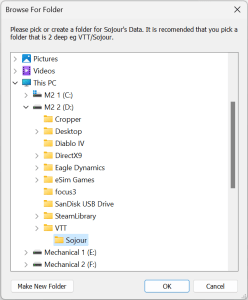
However, if this is not a suitable location, you can click ‘No‘ whereupon you are presented with this dialog window:
From here you can pick or create a folder for Sojour to use anywhere that your system can access!
But that’s not all….
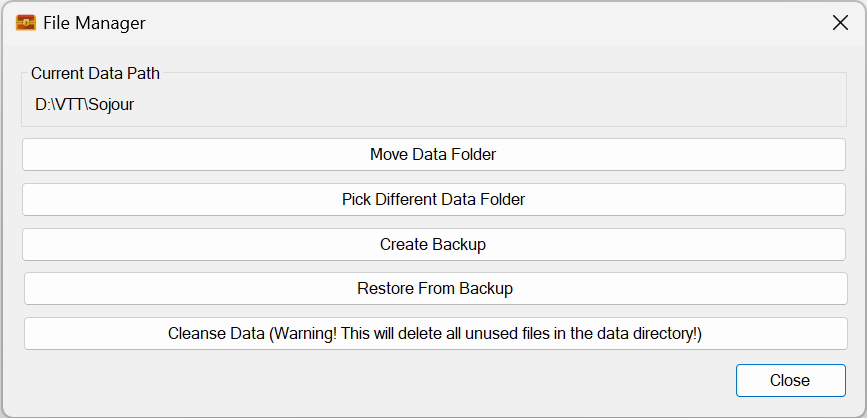
Sojour now has a new File Manager:
Click to view a larger version!
This file manager lets you do many things! You can move your current data somewhere else, you can back up and restore data and you can even point Sojour to a different set of data files!
The latter would allow power users to have several sets of Sojour data and allow them to switch between them at will!
Alas, this was no easy feature to code, it took a lot of effort to implement:
22 code commits over 29 hours of coding! (each day is 8 hours)
The reason it took so long was in part, due to some poor initial design choices from my previous self! (As an aside, my previous self has a lot to answer for and if I could go back in time, I would be having some serious words with him! :p )
With the original design, I had encapsulated the ability for each object within Sojour to know where its data was stored. This was a good thing. However, I had coded this system to use rooted paths rather than relative paths. This was a really bad design choice as one cannot move data around with rooted paths!
Undoing the above and designing a new system that would work with both the old and new filing systems really pushed my brain into overdrive! But it’s now done and I think Sojour is all the better for it.
The new functionality is really flexible, so to that end I have produced a You-Tube video that will take you folks through some of the things the new filing system can do!
The full list of changes in this release is:
RPG-354 New enhanced file system, which adds a whole bunch of new features and additional flexibility to Sojour.
RPG-358 Tokens no longer show their health bars when dragged from or to a map that has them disabled.
RPG-363 A tentative code alteration that may alleviate occasional crashes when using the screenshot tool.
This is a bug fix release and as usual is free to all customers.
The following issues were addressed in this release:
RPG-337 The treeview will now better remember its last state. It will now also focus on the last selected campaign and/or ruleset prior to shutdown. This should ensure that when you restart Sojour, you will always start in your last played ruleset/campaign.
RPG-348 Fixed a number of issues with regard to tokens from the token palette. Looks like these issues got introduced when the new drag and drop system was put in place two or three releases back. Issues fixed are: 1) Tokens that use dice expressions for their characteristics are now back to rolling their dice only once that token has been dropped onto the map. In addition, Sojour won’t re-roll them when Sojour has been restarted. 2) Tokens that have been rotated, now correctly show their rotation when dragged off map. 3) Dragged token health bars are now back to showing the actual health of the token (this never affected the token itself – just its dragged representation).
RPG-356 Fixed a PDF issue and upgraded the WebView2 component to the latest version. Sojour always tries to restore opened PDFs when you start it. However, minimized or maximized documents prior to shutdown could confuse Sojour when it tries to re-open these documents. This has now been fixed and Sojour now respects whether documents were maximized or minimized prior to shutdown and will now leave those documents in the appropriate state when restarted.
I have been putting my thinking cap on with regard to these bug fixes and have forwarded all my customers a question:
“Would you prefer a slower release cycle – say once a month – to allow for more testing? Or do you prefer the current weekly cadence with an increased risk of bugs being introduced?”
It’s a pretty important question as the answer will affect the way I work and how often you folks get new releases. I’ll go with whatever the consensus is and post the result here!
That said, I am expecting a new release this Sunday that will provide much more flexibility with regard to where Sojour saves its data. This should be the next release, unless any critical bugs are detected between now and then.
This is a hotfix that fixes the Map Scaling Wizard that got broken in v1.2.11.0. All users are urged to upgrade to this version.
In addition, the following story got addressed:
RPG-333 Vertex buffers, Index buffers and Textures are no longer initialised unless the map holding these models is loaded. This should speed up overall loading times and vastly reduce resource usage on startup.
(I discovered the map scaling wizard issue whilst working on the above story)
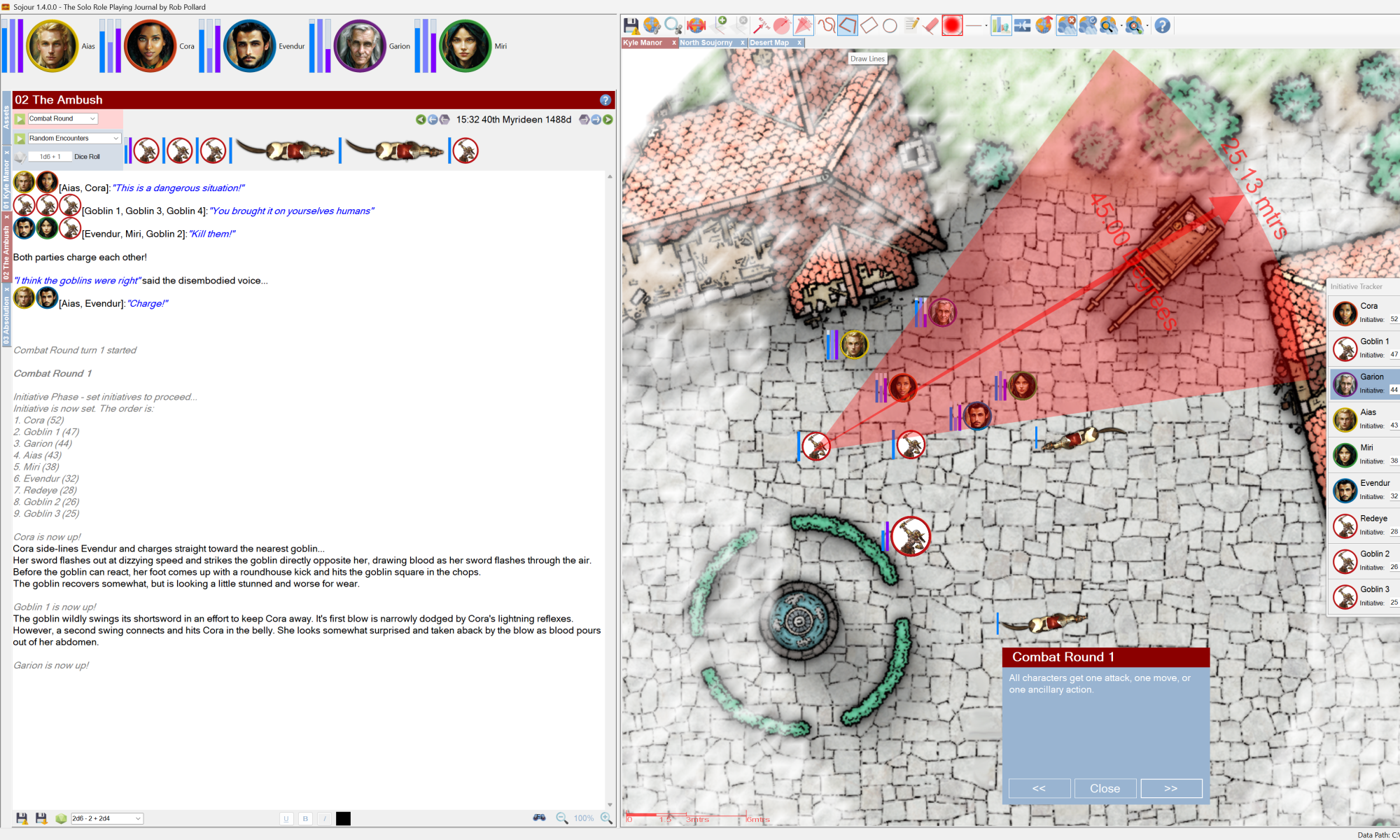
This version includes fog of war enhancements added as a result of customer feedback.
Once again, thank you for this feedback, it is invaluable.
If you want to know more about the Fog of War enhancements pop over to this You-Tube video:
Fog of War Enhancements!
Here are the full list of changes for this release:
RPG-335 Fixed an issue that could occasionally crash the journal when changing between font types.
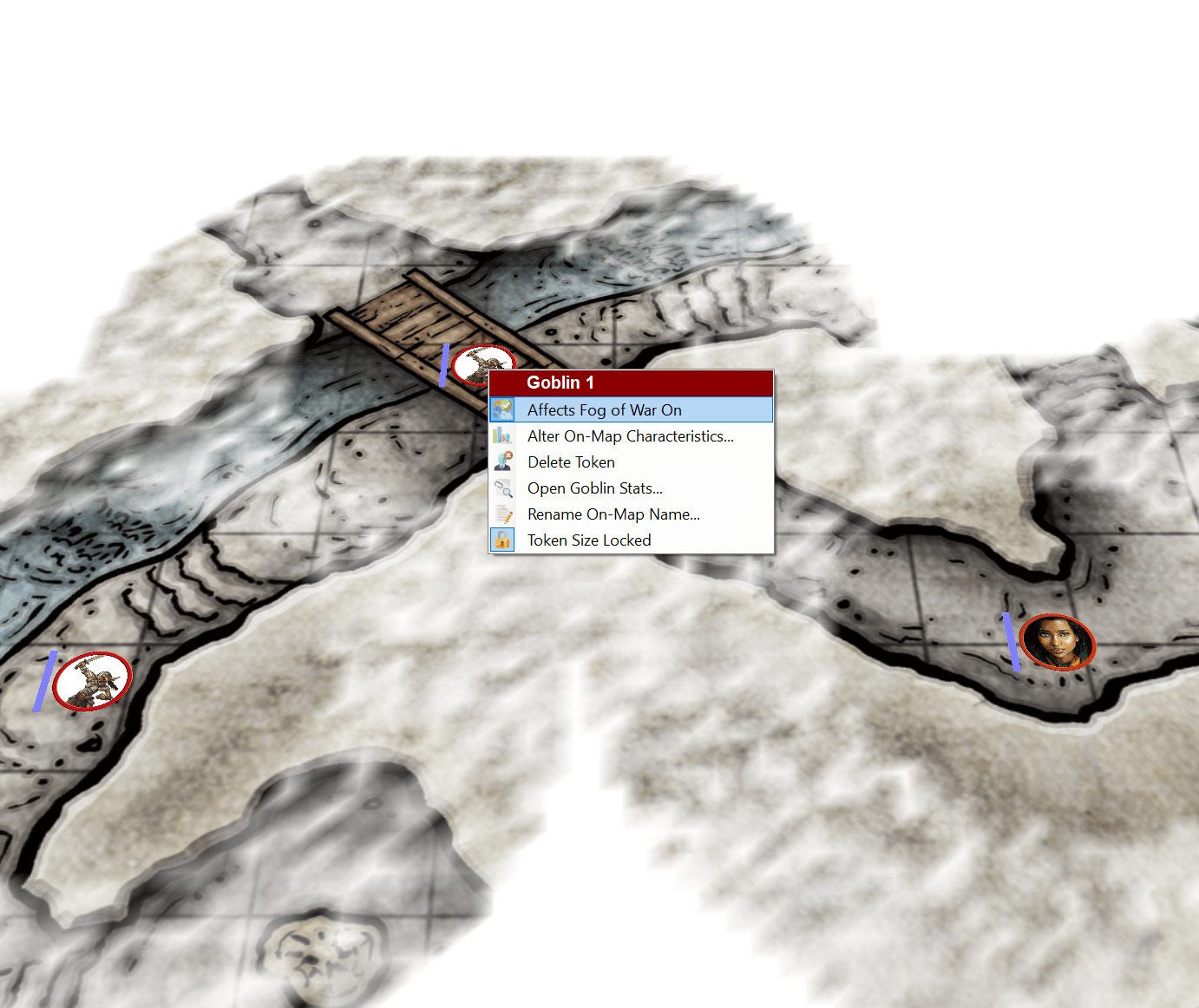
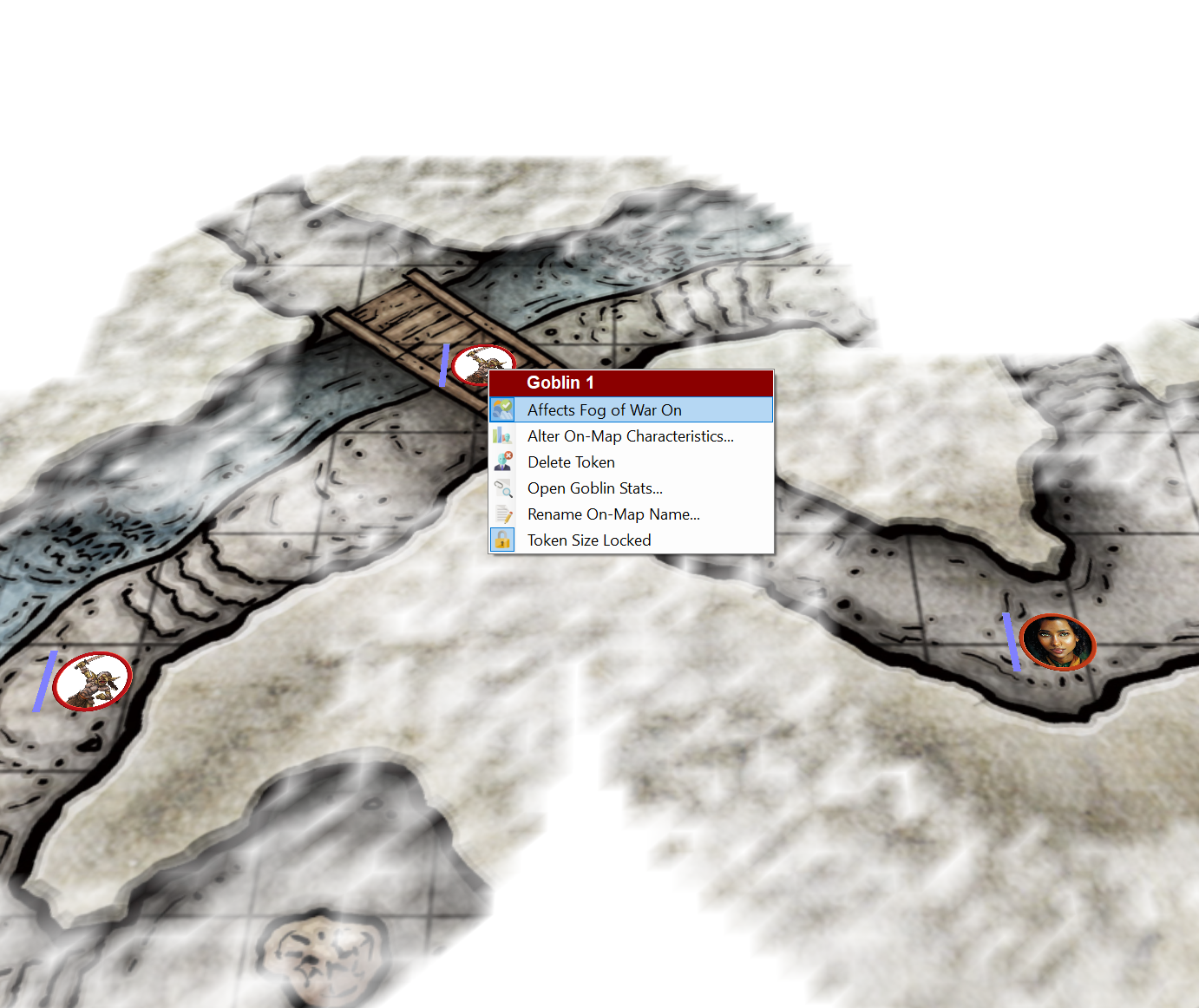
RPG-336 Tokens can now have their ability to affect the fog in fog of war toggled by using a right click context menu item. See the manual and the video for each token’s type defaults.
RPG-341 Sojour’s file handling code has been tightened up. However, note, that windows file paths default to having a maximum length of 260 characters. If you go above that, you will need to enable it with this registry tweak.
RPG-347 The map preview is now left on for the duration of map scaling and the map scaling token now always appears above the fog. This makes custom token scaling easier on maps with fog.
RPG-348 This is a corner case fix. If you drag a character to a map that the character is already on, then drag your cursor off the map, Sojour could crash in certain circumstances. This has been fixed!
RPG-350 The map free draw function has had code added to it to smooth out drawings (they used to come out quite jagged!)
With the Fog of War release out of the door, I thought I’d get some metrics together!
This is a technical post for those that like numbers and might be especially interesting for those that write software.
I should probably preface this post by saying that my views on software development are my own and should not be considered the views of any employers that I have worked for, either past or present.
First up, the code itself. How big is it?
Basic code metrics (click for larger image)
Sojour consists of 4 main components, not including the installer. These 4 components have a total line count of 28,214 lines of code! The installer would add another 381 lines of code to that count.
However, these figures don’t tell the whole story as Sojour comes with a 161 page illustrated manual and various art assets that also have to be maintained.
Not all of this code was written from scratch. Quite a lot of it had been borrowed from my other project Ancient Armies.
The maintainability index has a range of 75–81. This index is a broad indication of code quality. Microsoft suggest anything from 20-100 is good, so I guess Sojour’s scores put it at the higher end – which is good news 🙂
How long did it take to write?
That’s a more difficult question due to the fact that when Sojour started I never took it seriously! It was considered a ‘quick’ and ‘dirty’ project reusing Ancient Armies code classes to deliver a VTT that was more suitable for my style of play. It was never originally intended to go on sale!
There was sporadic development between December 2021 and July 2022, but I don’t know exactly how much development took place in that time period as Sojour had no development pipeline setup for it.
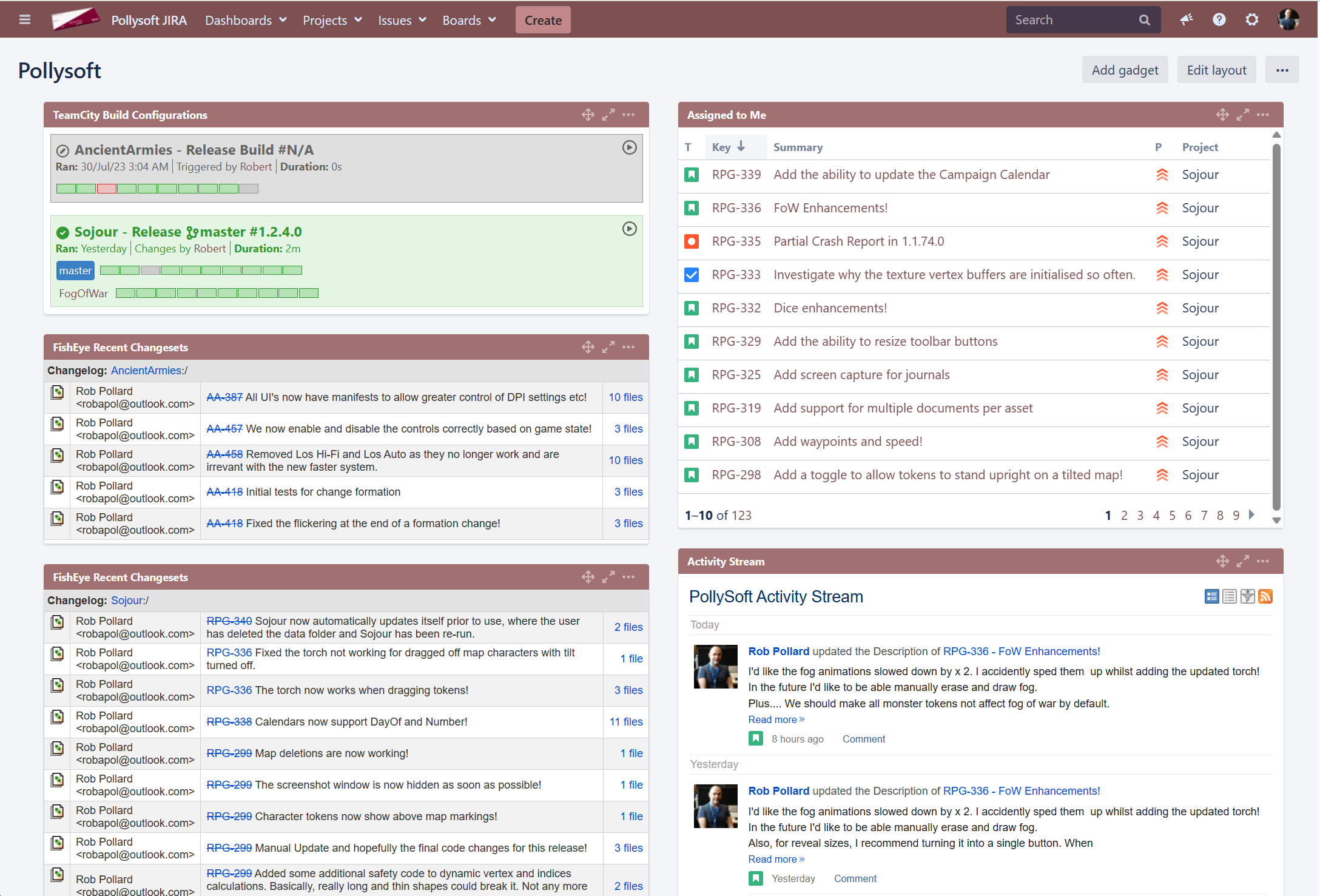
It wasn’t until July 2022 that I started to see its potential and take it seriously. At that time the full development pipeline was put in place. This pipeline is fully automated and allows traceability from stories to code and then on to released binaries and vice versa. It provides an internal Wiki which is also linked to stories and it can build any specific version of Sojour at a whim (handy for testing). It’s this environment that’s also responsible for Sojour’s seemingly random version numbers (not all builds are released).
JIRA is at the beating heart of my development pipeline! (Click for full size image)
Despite the lack of metrics prior to July 2022, I do have very accurate measurements subsequent to that period. All figures are from that point on and do not consider the sporadic work prior to that.
According to my system a total of 490hours has been sunk into the project. That’s around 61, 8hour days in little more than a year! Not bad considering that this was all done in my free time!
How good was I at estimating time for my work?
It turns out I was pretty pants.
I tended to get my work done at approximately 64% of the original time estimate. So I’m over-estimating to a tune of 36% on average!
What about story/work break down? What have I actually been up to?
For this I will show the metrics post-release as the pre-release metrics would seriously skew what’s presented, mostly because there were no customers pre-release!
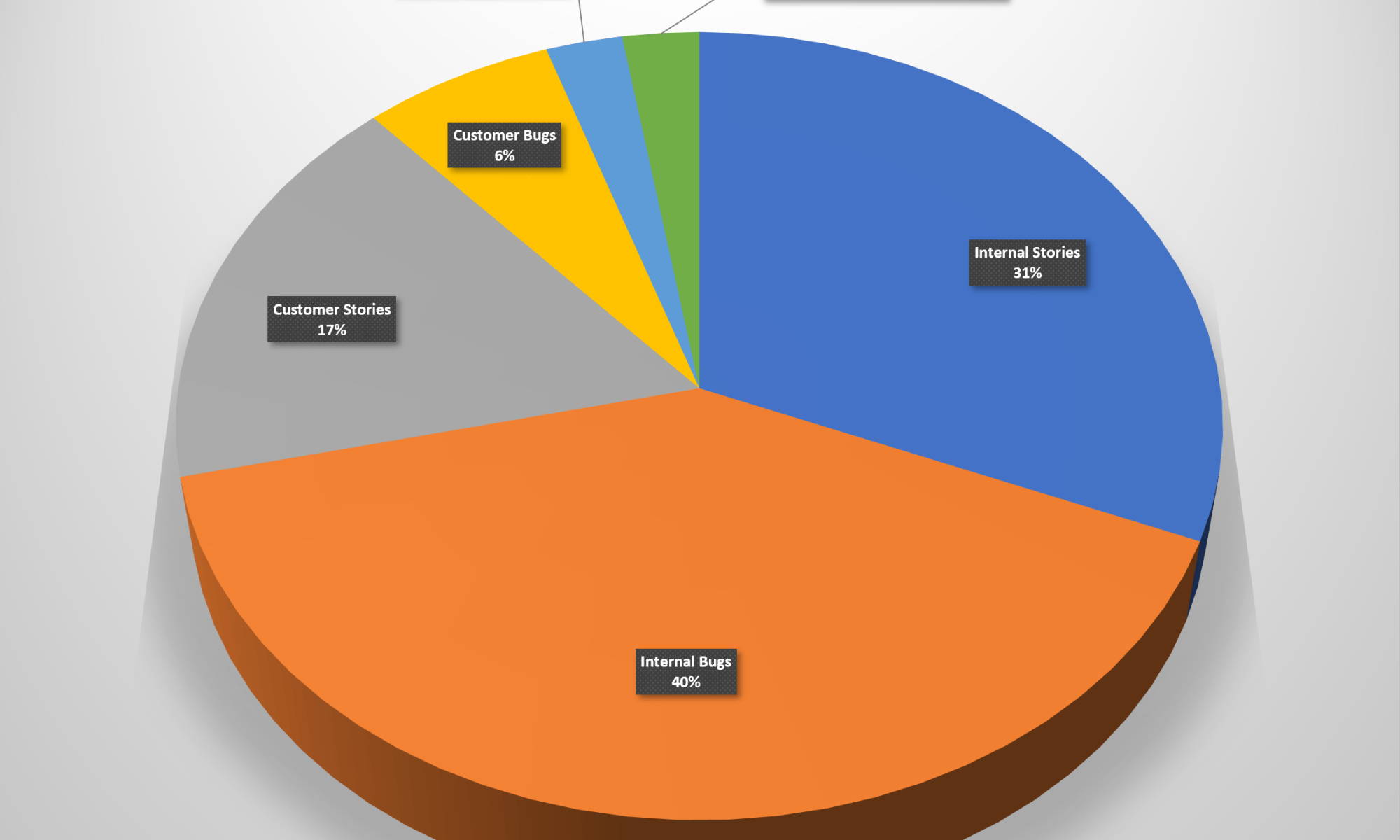
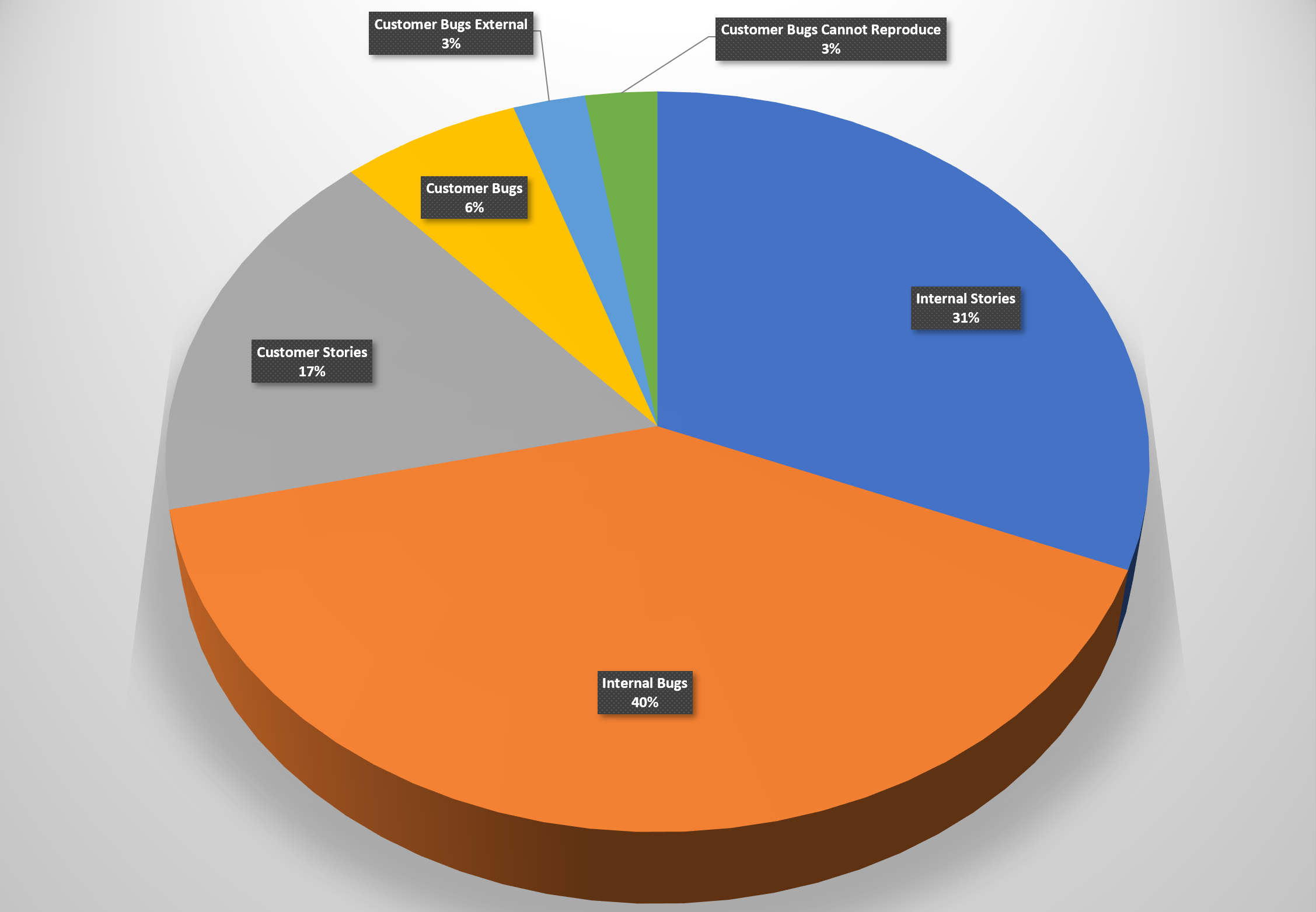
All stories breakdown (Click for full sized image)
From here we can see that the story breakdown is almost equally divided between 50% bug fixing and 50% new functionality. Note that this chart and the others below are broken down by number of stories and not time. As such they don’t represent effort.
Unlike Ancient Armies, Sojour has no automated tests, at least not yet. The way development works is that a story is tested whilst it is being developed. Then I change my hats and the story goes in for internal testing. It’s at this point that the internal bugs are raised and fixed.
I suspect that the lack of automated tests is down to the fact that Sojour’s design and feature set have been extremely fluid and volatile. If I were to have put in automated tests right at the beginning, those tests would have created a resistance to change that is directly proportional to their numbers – they would have hindered more than helped.
In addition, their inclusion would have pushed the release date right by at least 6 months. Adding full test coverage to any software project tends to multiply its codebase’s size anywhere from 200% to 400%, sometimes more!
The inclusion of automated tests is on the cards. But the time invested in those will take me away from time required to implement the new features that the customers want. I will need a strong business case to switch feature time out for automated test time.
For that to happen, I would need some consistently problematic areas to appear within Sojour – but thus far, they have failed to materialise.
Lets take a closer look at the bugs:
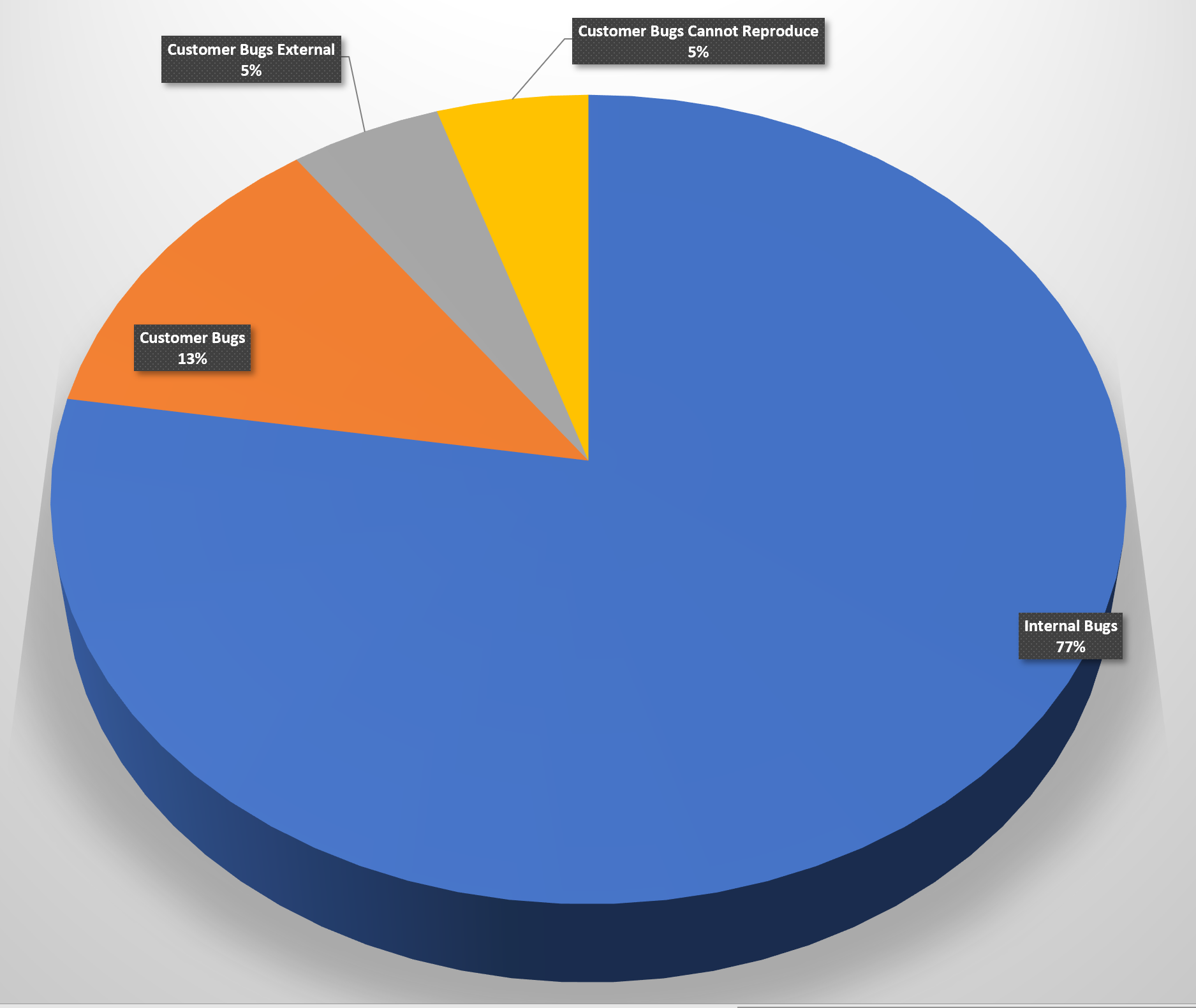
Bugs story breakdown (click for larger image)
Before we start, I should probably air my views with regard to bugs and specifically how they relate to Sojour’s development.
Controversially, I consider bugs a natural and intrinsic part of the software development cycle. I view them as a form of iterative feedback. Addressing them is simply addressing that feedback and iterating on an initial code design and implementation.
One could debate that automated tests could reduce the number of internal bugs, but I could debate that for Sojour, manual testing, raising the bugs and fixing them is a faster and a more flexible iterative process than writing and maintaining rigid tests. This is especially true when the majority of the detailed features of Sojour’s stories tend to be discovered during the manual testing phase – after all, the best way to test the flow of a system is to actually use it!
With that out of the way, we can concentrate on the chart’s results 🙂
The results indicate that the internal testing effort has been reasonably effective. 23% of all internal bugs made it to the outside world, of which 43% of those are either unreproducible (normally singular reports) or the result of external factors beyond Sojour’s control (For example Microsoft releasing a broken operating system component – those bugs tend to need quick workarounds placed within Sojour).
On the plus side, that means that 77% of bugs never make it out of the door! That’s not a bad figure, but ultimately it’s one that I aim to improve upon.
What about customer requests for new features? Are any being actioned?
Story breakdown by source (Click for larger image)
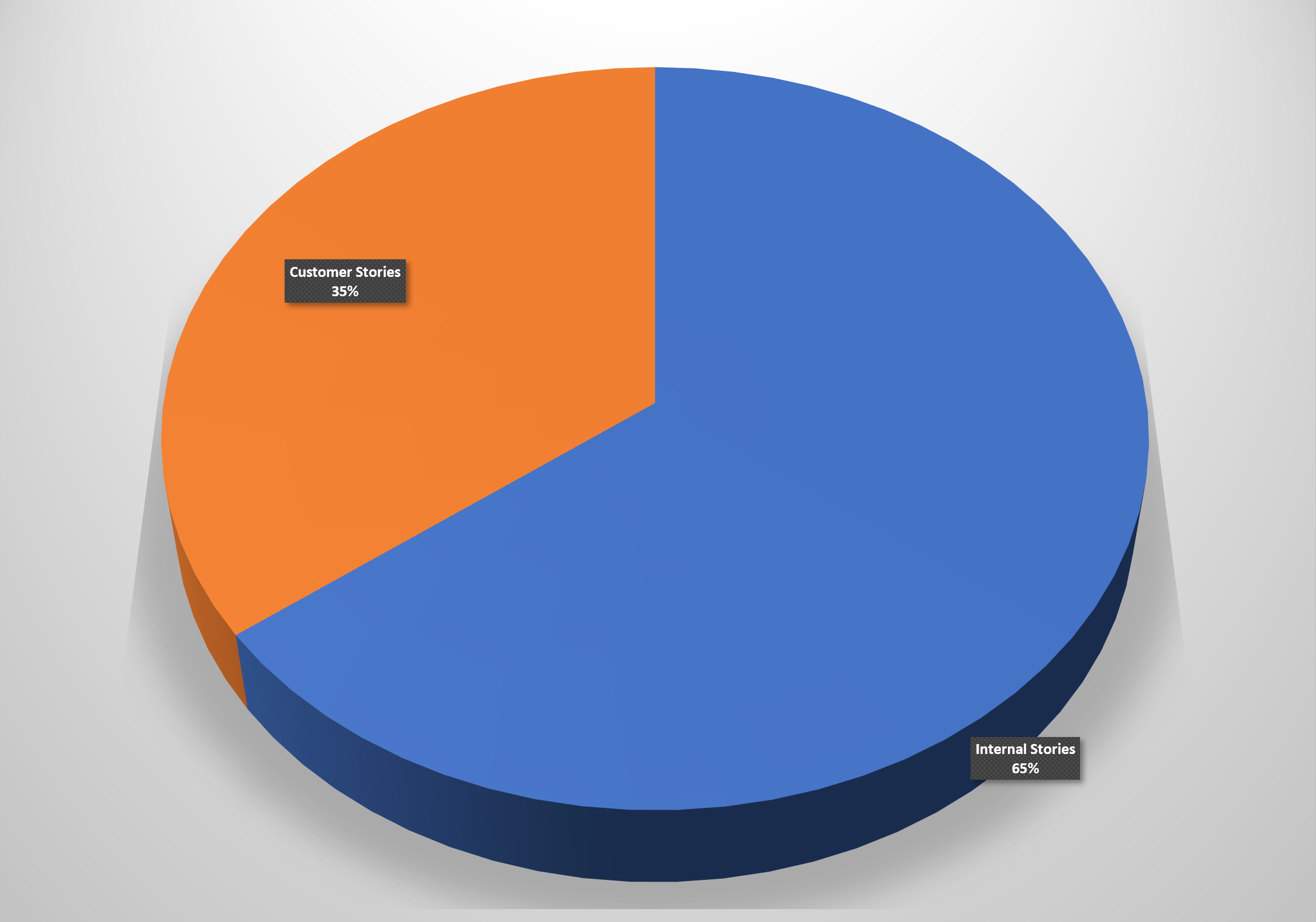
It turns out that 65% of all new functionality comes from me, with the remaining 35% coming from the customers. This pie chart represents delivered functionality too, so I guess it does prove that I do listen to my customers!
That said, the ultimate aim will be to equalise these figures a little more.
I suspect that the bias is down to my strong product vision. I have so many ideas that I want to incorporate and these tend to bias the story pipeline.
Finally – How happy are my customers?
This is a really difficult metric to determine.
The review comments and social media comments have been really positive and Sojour tends to be favourably compared with much larger and more expensive commercial offerings:
“Overall, Sojour Solo RPG VTT offers a level of functionality and ease of use that is unmatched by any other VTT platform.” – From a review on DriveThruRPG.
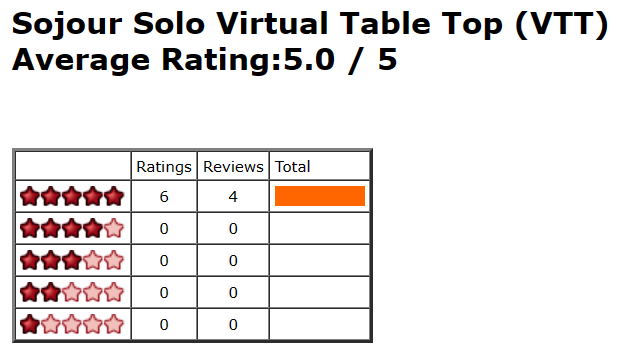
In the case of DriveThruRPG’s review scores, at the time of writing, there are 10 reviews in total, all of which have a straight 100% 5 out of 5 star rating:
Whilst good, 10 reviews is a tiny percentage of the overall customer base. As a result I don’t know how the other customers feel with regard to Sojour!
(If you are a customer, please let me know how you feel about Sojour! Tell me what you like or dislike about the product. This will help shape the future direction and journey that Sojour needs to take to be the best software that it can be!)
That’s it for this post – I hope it sheds some light on what’s going on behind the scenes!
This version adds the missing Fog of War function alluded to in the earlier video – the ability to have the mouse preview / torch switched on whilst dragging tokens. I eventually figured out how to do it, so for the moment, this first iteration of Fog of War is now feature complete!
The old video will be taken down as it is no longer representative of what one can do.
You are encouraged to view the new one below as having the ability to use the mouse preview whilst dragging tokens is a game changer for ease of use!
This is a hotfix for custom calendars. Current calendars will automatically be upgraded and customers shouldn’t see any change of functionality.
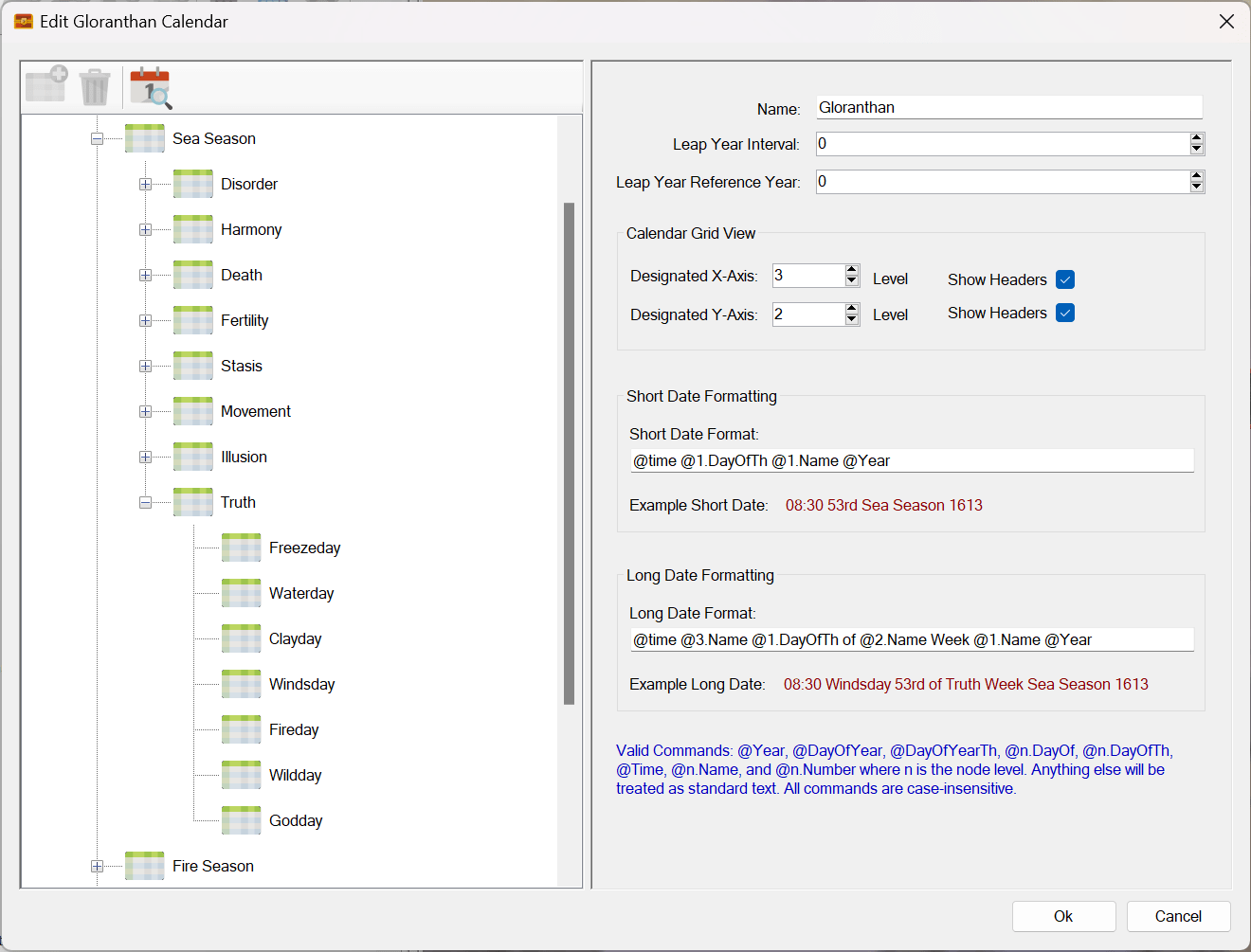
This fix separates the concept of TimeUnit number and day of at n level.
Warning! The next few paragraphs are highly technical and only really applicable to customers that are using Sojour to create custom calendars!
Previously, the n.number command did not return the TimeUnit number at level n. Instead, it used to return the day of number at that time unit level.
This is a little misleading to say the least.
To fix this all n.number commands have been renamed to n.dayof and n.numberth commands have been renamed to n.dayofth.
These names better represent what those commands are doing.
There is no need for you to change your existing custom calendars! Sojour’s auto-update system will do this for you automatically! 🙂
The n.number command has then been re-introduced, except that this time it actually reports the number of the selected TimeUnit at the chosen level.
I know this is going to sound like absolute gobbledegook to most people! The intent will be to put out a new custom calendar tutorial video that will make this a lot more clear.






 Sojour