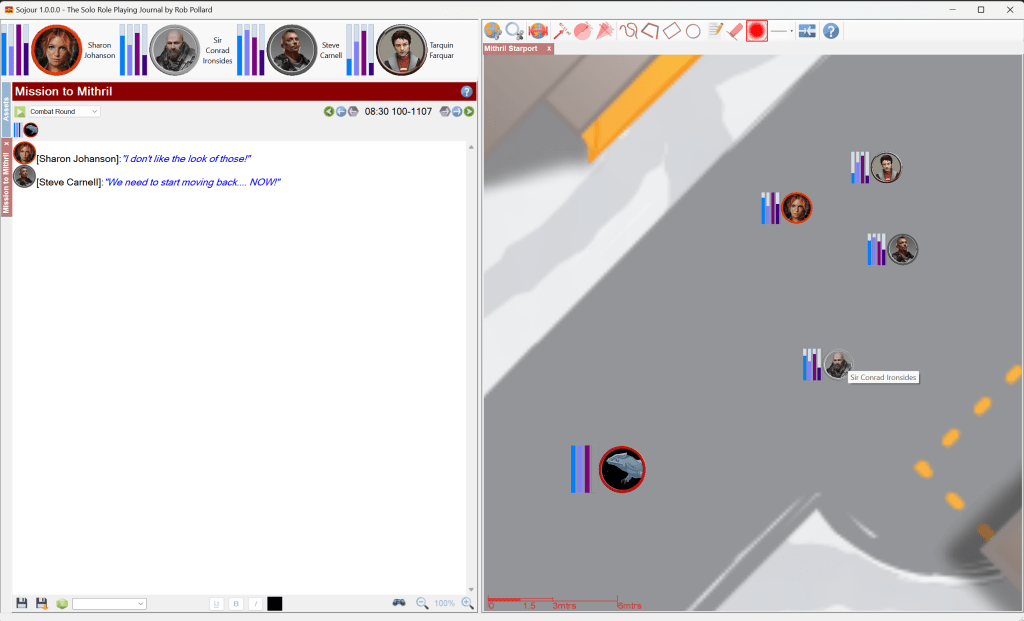
If you examine the screenshot above you can spot the next enhancement added to trackable characteristics: Characteristic Sets.
Each ruleset can have from zero to as many characteristic sets as needed. Each characteristic set can be built to model a particular thing in a game system.
In the above example I created three characteristic sets for the selected ruleset:
A standard characteristic set with just strength, dexterity and endurance – In this example, Aias is sporting the standard set with three bars.
An enhanced characteristic set for those that are Psionically aware – Arla is one of these – that’s why she has an additional 4th purple bar.
A characteristic set for monsters. These only need one value and that’s hit points. All the monsters are using this one – the tokens with the single green bars.
I also have a red token on the map that I have decided will not have characteristics – so that one sports no characteristic bars.
In addition to characteristic sets, each map can also have its characteristic bars toggled on and off and these settings persist between sessions – It’s the new map tool button, third from the right.
Characteristics can be altered either by mousing over the portraits in the tool bars / journals or mousing over the characteristic bars directly on the map and then using the mouse wheel.
Don’t worry about the specific details, the manual will be updated and a new video will be released to show you folks how to take advantage of the trackable characteristics system 🙂
This update improves journal conversations (though there are still more improvements down the line for that) It also fixes a bug introduced into the PDF viewer by Microsoft.
Details below:
FIXED! RPG-254 Unbeknownst to me, Microsoft broke the toolbar on the WebView2 component that Sojour uses for displaying PDFs. The toolbar is now visible again and I have also fixed an odd threading issue, where once upon a time, opening a character sheet used to make that character sheet’s window unresponsive for the first click. It’s now responsive from the get-go.
I have also updated the WebView2 component to its latest version. This is a really tricky process and whilst it works on my machine, I would be interested to hear how others fare.
ENHANCEMENT! RPG-256 Anonymous conversations no longer inject a newline when they have finished. This was added because my latest campaign has many anonymous characters in it and I discovered that anonymous conversations tend to have a more complex structure than the standard token based conversations. For example: “Go Away” said the troll, “Don’t bother me!” – all this appears on one line, but the old system’s insistence on adding a newline character simply got in the way.
ENHANCEMENT! RPG-257 Active conversations are now automatically deactivated if the user deletes any part of the conversation’s text prefix, up to and including the first speech mark or any of the portraits. Sojour will remove the whole of the prefix section with portraits and reset the journal to having no active conversations.
The same thing happens for anonymous conversations if the first leading speech mark is deleted.
Note, the above applies to active conversations only. Once completed (and inactive), a conversation can be edited in any way that you see fit.
This was introduced because I’d occasionally go to write a conversation and then change my mind by deleting it. However, the old version of Sojour never detected the deletion, so it stayed in conversation mode which lead to all sorts of weirdness.
That’s it for the changes!
My current coding schedule will be following a philosophy of releasing little important things like the above on a relatively quick cadence and the larger bits of new functionality – like custom views – on a slower in-parallel cadence. If I don’t do this, your updates would be held up by the bigger features, which I don’t want to happen!
I think I have struck the right balance, but if you folks would rather I switched to some other release cycle, then please let me know! (Email address is in the release notes and the manual)
This is a minor release that updates the installer only.
Two enhancements have been made to the installer:
The installer is now named Sojour_n.n.n.n.msi by the build server. This is to allow you folk to better identify what the installer is for when you download it.
A shortcut to the 134 page manual is now added to the user’s desktop on installation.
I added the manual desktop shortcut because there was a flaw in my thinking with regard to the manual….
The manual defines within its pages how to access the manual by clicking a specific Sojour toolbar button….. Which you wouldn’t necessarily know about unless you read the manual! 🙄
In the meantime, work is still continuing with the custom views functionality.
This is a minor release featuring some enhancements and two bug fixes. As of now, the only known issues with Sojour are:
RPG-245 – Installer sometimes fails to install Direct-X. I have only had 2 reports of this one. I can’t fix it until my laptop is at a point where I can wipe it for testing purposes. There is a workaround if you are afflicted by this – download the release notes for further information.
RPG-251 – Sojour crashes when the screen turns off or goes to sleep for an extended period of time. Alas, I have not been able to reproduce this one, either on Windows 10 or Windows 11. However, if you are seeing this please get in contact with the email address in the release notes and try to provide as much information as possible.
Fixes in this release:
Fixed!! PG-246 Changing a character portrait now properly updates maps where the character resides.
Fixed!! RPG-247 The transparency tool now works for images captured using the screenshot utility.
Enhancements this release:
Enhancement!! RPG-248 The journal inline dice roller can now be toggled between showing results only (as usual) or displaying the full dice roller text.
Normally to use the inline dice roller you type [1d6 + 2d10] or {1d6 + 2d10} to get either a result or a detailed result respectively. (Though the latter’s output has been tweaked to make it more usable)
However, you can now also type [[1d6 + 2d10] or {{1d6 + 2d10} (use double brackets/braces up front) which will then replace the dice expression with exactly the same text that you would get if you were using the journal dice roller button at the bottom of the journal.
Enhancement!! RPG-249 Map scale assistant improvements. Better control alignment. More instructions. Other map toolbar buttons now disable when registering the map.
That’s it for this release. If you have any ideas for enhancements or you have spotted any bugs, or perhaps some feature or another is annoying you, then please get in touch with the email address in the release notes and I will see what I can do 🙂
Once more, thanks for buying Sojour and I’ll see you next time!
This is a bug fix release that addresses inaccurate map scaling that used to sometimes occur when scaling maps.
Remember the map scaling tool?
It is gone! It is no more! This tool has been completely replaced with a new Map Scale Assistant wizard.
The core problem with the above tool was that you never made your measurements directly on the actual map. Instead, you made them on a picture of the map within the scaling window. This was the root cause of the scaling issues.
Why should the above cause problems?
Well, it’s all down to a little secret within the map pane in Sojour…
Don’t tell anyone, but the map pane in Sojour is really a 3d map pane! – I just choose to display the maps in 2d only. (I’m saving 3d for some really cool future functionality!)
3d images – maps in this case – are displayed by using a ‘camera’ to project them into the 2d space of the window that you actually see. The problem I had with the original scaling system was trying unify the measurements on the picture-of-the-map with the measurements of the actual 3d map.
I had some cunning math to do this which was based on recreating the projection matrix of the camera so that I could use this to unify the scaling. But, as it turned out, that tended to produce small rounding errors, which can on occasion, lead to scaling discrepancies.
I had originally thought I could fix the math, but after numerous fruitless attempts I realised that this was proving to be an impossibility.
The only way to fully address this issue was to take a completely different approach. This new approach would hinge on allowing the user to take their measurements directly from the 3d maps themselves! Doing this would eliminate any rounding issues.
Hence the Map Scale Assistant wizard was born.
I’ll now take you through how the new wizard works – more information can be found within Sojour’s manual.
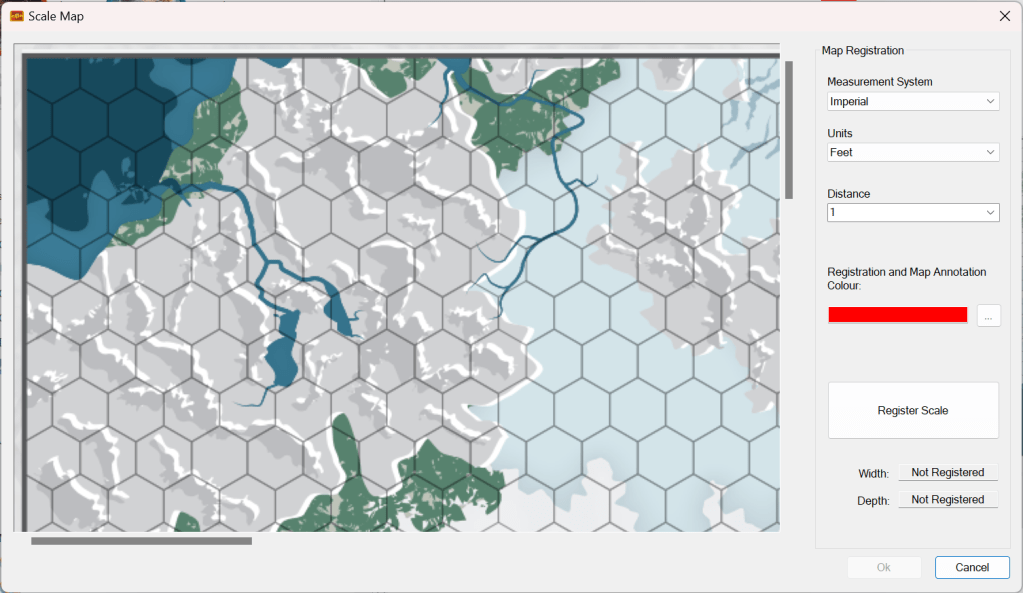
Firstly, the user opens the map that they wish to scale and then clicks the ‘Scale Map’ tool button.
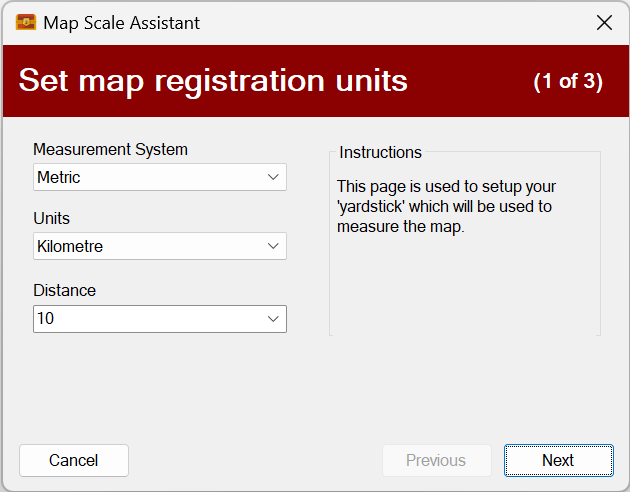
This results in the first page of the wizard being displayed:
This page allows the user to set the ‘yardstick’ that they are going to use to measure the map. It defaults to the map’s associated ruleset’s measurement system. However, this can be changed to match existing map annotations.
In the above example I have set my ‘yardstick’ to 10 km.
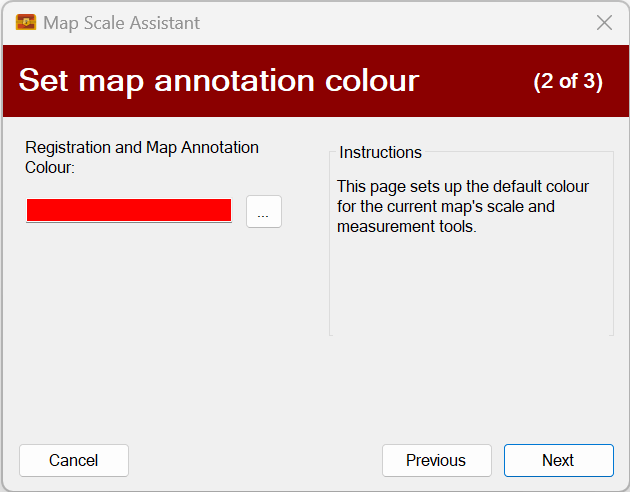
Clicking Next results in the second page being displayed:
This page allows the user to set the map annotation colours. It defaults to annotation colours of the selected map – where it is set. Otherwise it defaults to red.
All map annotations, including the map scale and measurement tools will be displayed using the colour picked above. Each map keeps track of its own colours.
For this example I decide to leave it at red as this matches the current map perfectly.
Clicking Next results in the third and final page being displayed:
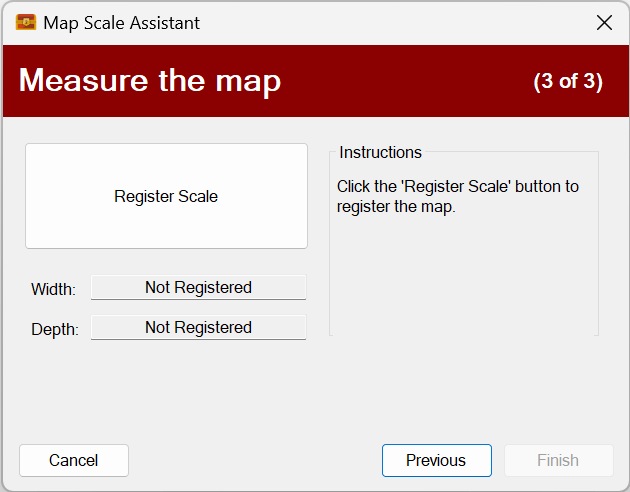
This is the page where the user will make their map measurements. This time on the actual 3d map rather than a picture of the map.
In the screenshot below I have clicked the ‘Register Scale’ button and have started measuring the map itself:
I have already picked the starting point of my ‘yardstick’ by left clicking the map. All I need do is drag the measurement ruler around until it measures 10 km on the map.
The map can be panned and zoomed whist attempting to take the measurement. This will help assure maximum accuracy.
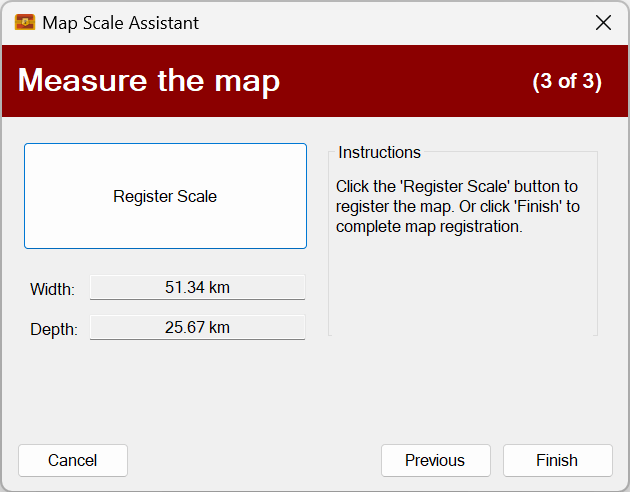
Once happy, just left click the map once more to register it:
The results of this registration attempt are a map measuring 51.34 km by 25.67 km. If I’m not happy, I can simply click Register Scale to try again or even navigate back through the wizard to change some of the settings.
Once happy with the registration, all one need do is click Finish. This results in a perfectly scaled map! All assets on the map will automatically be rescaled to fit the new map scaling.
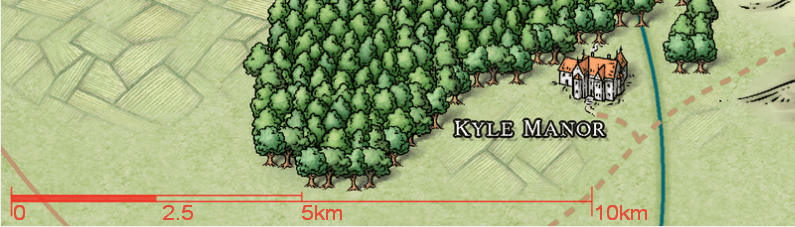
The scaled map now shows it’s properly scaled map scale in the bottom left in the chosen colour. This scale will auto-size as the map is zoomed in or out:
That’s it for this post. I hope you all find this new wizard a vast improvement over the original scaling tool!
PS: I’m still working on the custom views functionality too 🙂
In the meantime – thanks for buying Sojour and happy gaming!
The previous version 1.0.12.0 had been coded on my laptop as opposed to my main desktop machine. It appears that the DPI settings in its development environment were incorrectly set, which resulted in the ‘Add/Edit Character’ window being corrupted.
Alas, because this was a DPI issue, not everyone will see the problem. However, when it manifests, you will notice that the OK and Cancel buttons are missing.
This has now been fixed. All users that upgraded to 10.0.12.0 are now urged to switch to 1.0.13.0.
Sorry for the hassles. On the plus side, I have learnt that I need to keep an eye on the laptop’s DPI settings before committing any code.
Log into your DriveThruRPG account to grab the latest version. Don’t forget to download the release notes for detailed update instructions.
An excerpt from the release notes as to what has changed:
Sojour 1.0.12.0 Release Notes This is a minor update aimed at making Sojour more flexible. The main feature of custom folders is still being worked on. If you want to know what’s happening with Sojour pop over to https://sojour.co.uk/ (you are already here 🙂 ).
Changes
The internal data updater now backs up your data before making any changes to it. Backed up data is stored in C:\Users\<< Your Name>>\Documents\PollySoft\Sojour Backups.
Campaign Assets now have a new attribute on them that allows you to toggle whether or not they are unique. They default to being unique, which means that the Campaign Asset can only appear on each map just once. If toggled off, multiple instances of the same Campaign Asset can be added to the same map.
Campaign Assets can now have an on-map name that is separate from the Campaign Asset name. It defaults to the Campaign Asset, but by right clicking it on the map you can assign a different name. Each instance of the campaign asset can be given its own name. Handy if you are using campaign assets to represent geographical features.
Characters and NPCs can now also be made to converse by using Ctrl-Shift left click on the token on the map. Doing this will toggle that character/npc’s conversation status. This was added to allow characters outside of the initial 10 token positions to be able to converse.
More information for items 2-4 can be found in the manual.
Sojour has been out for around a month and so far very few bugs have been reported. That’s a good thing and it shows that the testing effort was pretty effective.
The current version of Sojour is 1.0.8.0. All customers should have received emails from DriveThruRPG informing them of any upgrades. If not, check your junk mail. Either way, you can always log into your DriveThruRPG Library and download the latest version from there.
(For those that still don’t have Sojour but are interested in buying, it can be purchased here for a one off payment of $10 USD.)
Outstanding known bugs in version 1.0.8.0:
Suspect range scale – this does not affect the measurement tools. I think this issue is now mostly fixed – see the release notes.
Installer fails when .net 3.5 is not already installed – I have had only one report on this one. It will be addressed when I get a chance to wipe my laptop as this will be the only real way to test the installer (yes I should invest in some VMs….)
A chap reported seeing a crash when right clicking in the assets tree-view. I have been unable to replicate this and the chap hasn’t got back to me. If you are that chap, please check your junk mail and get back to me 🙂
These are the bugs that I’m aware of. If you know of any others, then please get in touch using the email address at the beginning of the manual or in the release notes.
Where we are going
The first port of call are custom folders. This is the catch-all name for a functional feature that I’m adding that will allow customers to create their own folder structures in the assets tree-view.
This feature will also include custom coloured tabs that are keyed to a campaign, plus a means to link assets in the assets tree-view together. eg Adding a map link directly into a journal will be possible, as well as linking many other asset types.
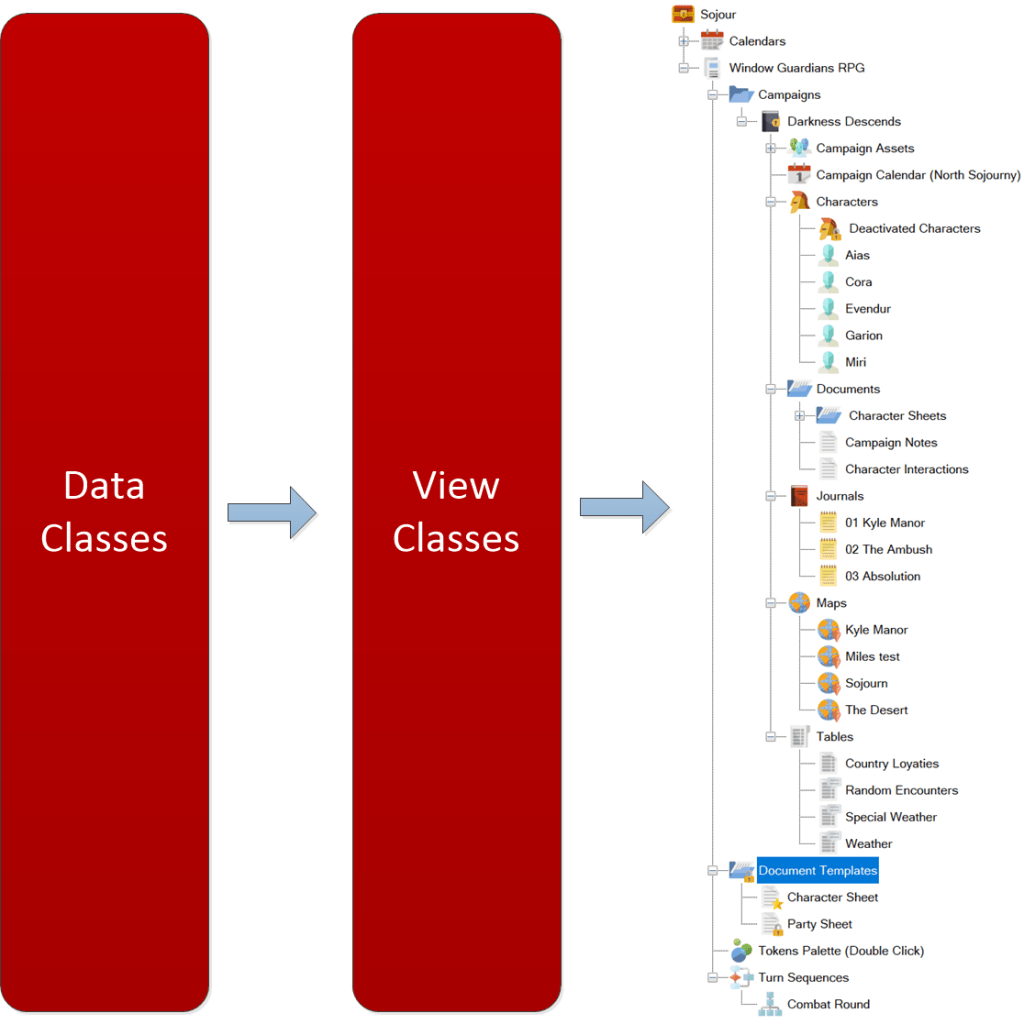
To deliver this functionality, the first technical hurdle to overcome was the coupling between the assets tree-view and the customer data:
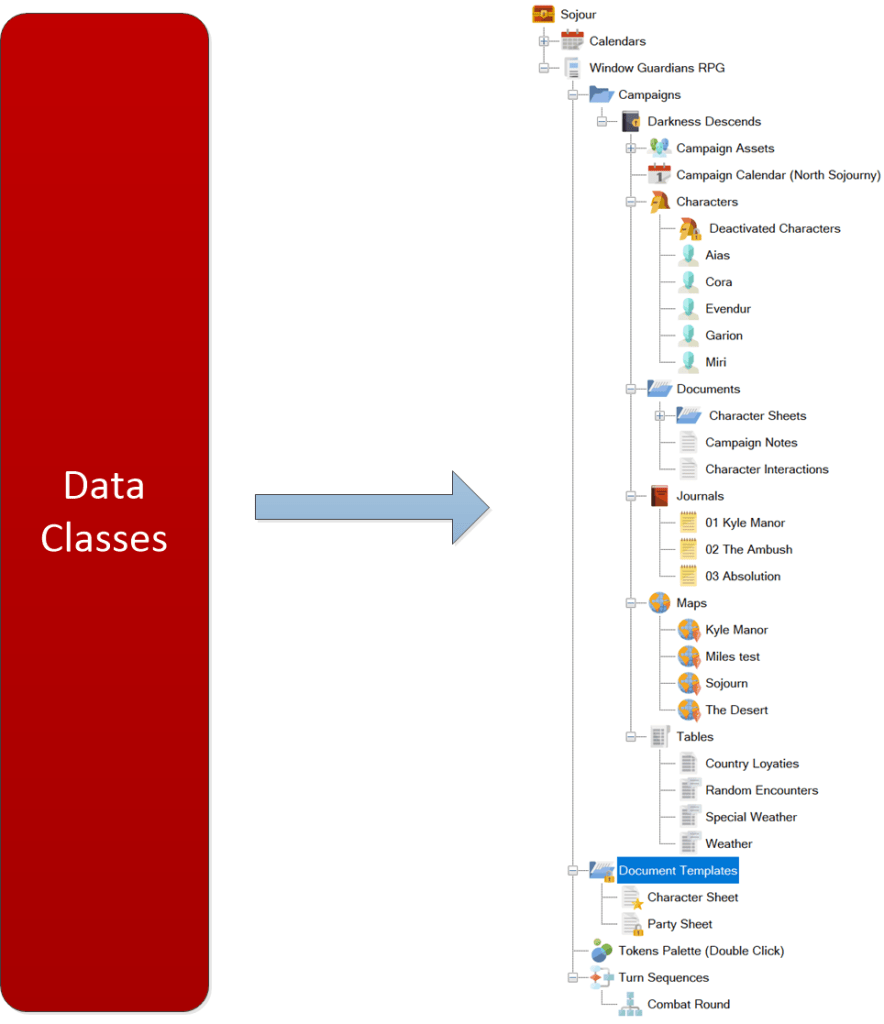
Right now, what one sees in the assets tree-view on the right is always a direct representation of the data within Sojour. With this architecture the assets tree-view can only represent the data in one way – the way it is structured internally.
My first job was to sever this link to allow for the possibility of customisation. This was done last Saturday (21st Jan 2023).
As a result we now have:
This new architecture decouples the data from what you actually see in the assets tree-view.
It allows customers to alter their view of their data without actually altering the data itself! The view is also entirely independent of Sojour’s internal data structures, further enhancing customisation.
It’s a very powerful system and one that will ultimately allow customers to create their own custom tree-views called views that will be selectable from a drop down list.
However, the custom view functionality described above will be delivered in the second iteration of custom folders feature and not the first. This is to allow me to mitigate risk and to get timely feedback that things are working properly.
Speaking of working properly, the intent is to initially release this functionality as a beta installer. That way customers can choose whether or not they wish to be at the bleeding edge of the engineering effort.
I digress however….
The first iteration of this system will have much of its internal functionality disabled. It will only support one view – the default Sojour view and will only allow customers to add custom folders under the existing Sojour structures. In addition, I will be limiting the content of each custom folder to the asset type of its parent, or another folder. eg If you add a folder under the maps node, only maps and other folders can be stored there.
The restrictions above are a temporary measure to aid the testing effort. If I enable everything at once, you folks will have to wait a lot longer for the Sojour release as it will need a lot more up front testing.
As a lone developer I need and value iterative feedback in order to be effective and to ensure that what I’m doing is what the customers want (quite a few have asked for this feature).
Once the initial testing is complete, I will enable the full views functionality that will allow customers to create any folder structure that they wish, mix asset types within a folder and to also filter folders to create any number of custom views.
Please bear in mind that this isn’t my day job – I’m a web developer – and that I’m the sole person on Sojour. I can only put time towards this project as and when it becomes available. As a result things may well be a little slower when compared to the big software houses. Patience is the key 🙂
Once again, a big thank you to all the customers that took a plunge and bought Sojour from an unknown developer. I hope that I can fully repay the faith that you have placed in the product.